To push LinkedIn ad engagement to your CRM, you write company-level data, impressions included, onto the company records sales already works in, so a rep sees the ad exposure next to the deal. The fields you choose decide what you can automate, so push more than a click count.
LinkedIn Campaign Manager and most CRM connectors log clicks and form fills, but they never show which companies only saw your ads. ZenABM syncs that company-level engagement to your CRM, creating the HubSpot, Salesforce and Attio properties itself, so you choose fields instead of building them.
Push LinkedIn Ad Engagement to Your CRM: Quick Summary
- Push seven kinds of fields. The seven are impressions, engagements and clicks by time window, the campaigns each account engaged with, the ABM stage, the engagement score, deal-open signals and intents. Each one triggers a different automation, so a single "engaged: yes/no" flag wastes most of the value.
- Time windows decide the action. Lifetime, 7, 14, 30 and 90-day counts let a 7-day spike alert a rep today and a 90-day drop trigger a re-engagement play.
- Impressions are the missing field. A company that saw your ads for two weeks and never clicked is invisible to a CRM that only logs clicks and form fills. ZenABM matches impressions and engagements to the company behind them, without a click.
- Intents say what to talk about. A score tells you who is warm, and an intent tells you which campaign theme that account responded to.
- Deal-open signals alert the account owner. ZenABM tests every Friday which ad signals show up more often in accounts that open deals, on your own data, and keeps only the significant ones.
- ZenABM creates the properties for you. It writes to HubSpot, Salesforce and Attio company records, you tick the fields you want, and no CSV is needed. Setup takes about 10 minutes and backfills 90 days of ad data.
- Pipedrive and vibe-coded CRMs need another route. ZenABM has no native Pipedrive sync today, and a home-built CRM has no standard schema to write into, so webhooks, the REST API or the MCP server are the way in.
- In ZenABM: ZenABM shows which companies engage with your LinkedIn ads and writes that engagement, their scores, ABM stages and intents onto your HubSpot, Salesforce or Attio records, with deals read back daily. Plans start from $59/month.
Here is the whole post in one picture: the seven fields, what each one triggers and how they reach your CRM.

Why push LinkedIn ad engagement to your CRM
Clicks and form fills show only a small part of how companies react to your LinkedIn ads, so a CRM that logs only those is blind to the rest. Most people who see your ad never click. In ZenABM's latest data pull (October 2026, 168 LinkedIn ad accounts), the median single image ad had a CTR of 0.53% counting every click, and a landing page CTR of 0.37% counting only clicks to your site.
Now picture a decision-maker at a target account who sees your ads for two weeks and never clicks. Later they search your brand and visit your website. If your CRM only logs clicks or form fills, sales has no idea the account is warming up, and marketing cannot connect that exposure to the deal that follows.
Here is the gap in one view: what your CRM records today versus what actually happened.

LinkedIn's own CRM Sync does not close that gap. It brings CRM outcomes into LinkedIn for HubSpot, Salesforce and Microsoft Dynamics 365, which is the opposite direction, so LinkedIn's CRM Sync help page covers revenue reporting, not impression-level company data in your CRM.
Having company-level ad engagement next to your accounts and deals helps you:
- Spot accounts showing interest even if they never click
- Score accounts by how much they engage with your ads
- Send promising accounts to sales at the right moment
- Judge campaign performance beyond engagement rates
- Link ad campaigns to pipeline and revenue
Doing this by hand means CSV exports every week, so it has to be automated.
Why the data should come from LinkedIn's API, not visitor identification
Website visitor identification tools match the IP address of people who land on your site to a company. That misses every company that only saw your ads and never visited, which is most of the companies your ads reach.
IP matching is also unreliable on its own. Remote work, VPNs and shared networks hide or blur the company behind a visit, and cookie-based matching keeps losing ground as browsers block third-party cookies. Company-level data from LinkedIn's official Ads API counts the impressions, clicks and engagements for each company your ads reach, whether or not anyone visits your site. That is the data ZenABM writes to your CRM.
What LinkedIn ad data to push to your CRM
Push seven kinds of fields, because each one triggers a different automation in your CRM. Start with raw counts, then add the context that tells a rep what to do.
Impressions, engagements and clicks by time window
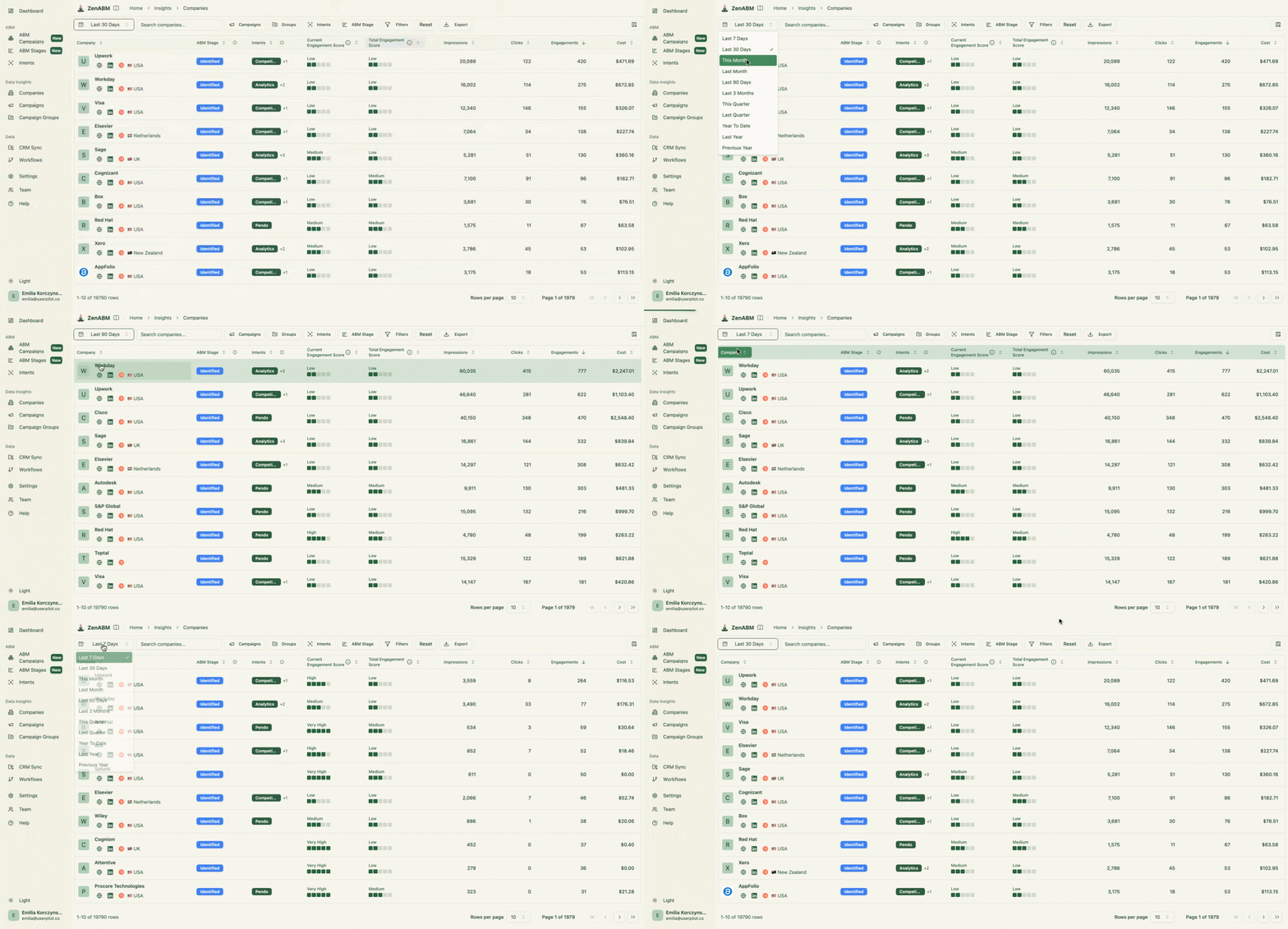
Push impressions, engagements and clicks as a lifetime total and for the last 7, 14, 30 and 90 days. A single lifetime number says only that an account is warm. The windows show which way it is moving, and each one can drive its own workflow.
Window | What it tells you | Automation it can trigger |
|---|---|---|
Lifetime | The account has been exposed to your ads | Segment and report |
Last 7 days | A fresh spike in attention | Alert the account owner or BDR today |
Last 14 days | Sustained attention | Add the account to a call list |
Last 30 days | Steady engagement | Enrol in a sequence |
Last 90 days | Engagement is fading or holding | Recycle or re-engage the account |
If you only push the lifetime total, you cannot tell a hot account from one that went cold last quarter. ZenABM writes all five windows onto the company record, so you choose which workflows to build. The Companies view shows the same counts per company:
Which campaigns each account engaged with
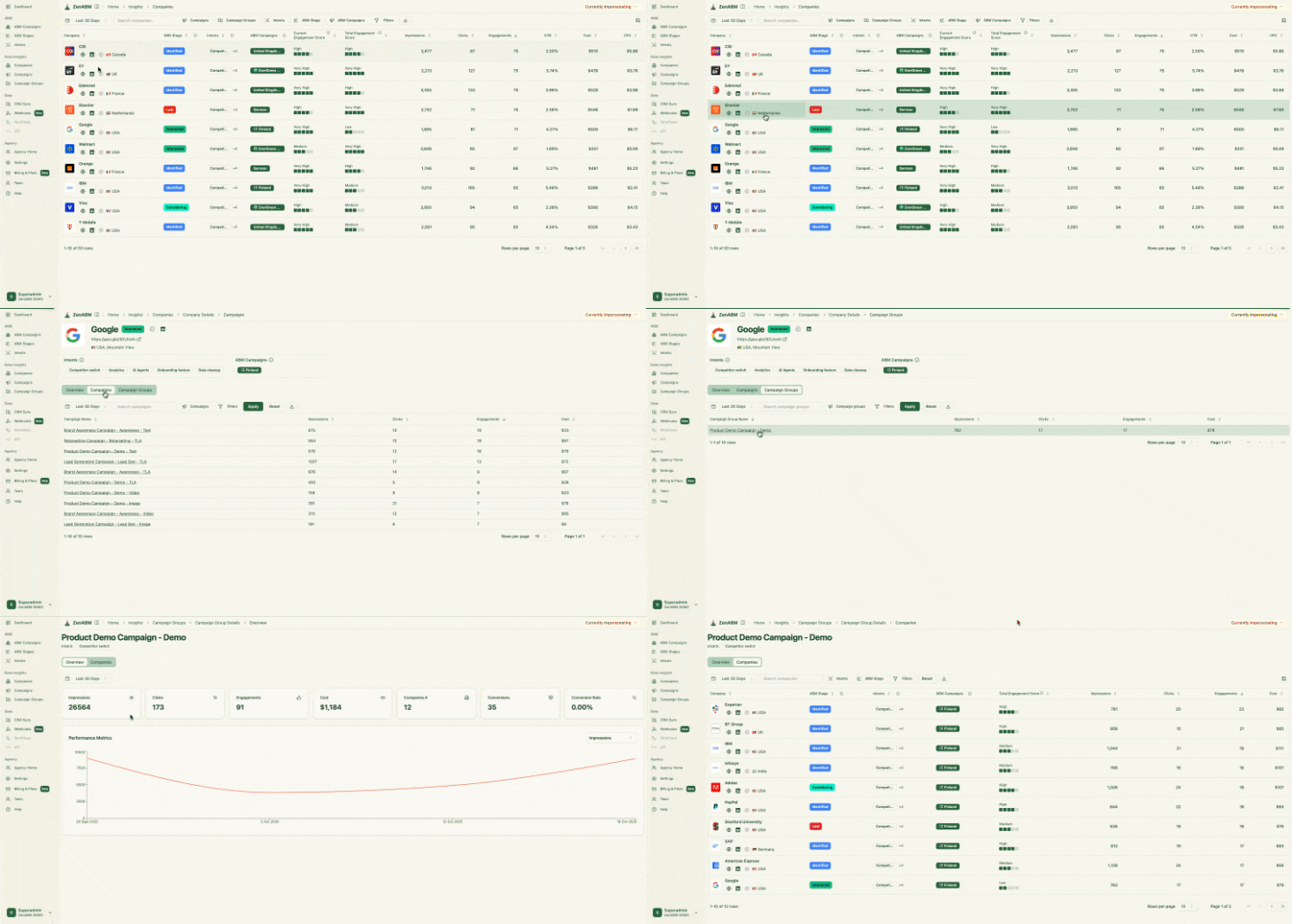
Push the specific campaigns each account engaged with in those windows. A rep who sees that an account clicked the "Competitor Switch" campaign and ignored the "Virtual Conference" one can open the conversation on the right topic. ZenABM can show every company that engaged with a given campaign, which Campaign Manager does not expose per account:
Engagement score and ABM stage
Push the engagement score and the ABM stage so sales gets a ranked list instead of raw counts. ZenABM calculates the score like this:
engagement score = (clicks × 2 + engagements) ÷ impressions, shown on a 1 to 5 scale
A 5 means the account engages far more than its exposure would suggest, and a 1 means it sees your ads and mostly ignores them. Each company has a lifetime score and a current score for the period you pick.
The ABM stage is a rule you define from ad engagement and CRM conditions, such as a deal stage or lifecycle stage. ZenABM recalculates stages daily and writes them back to the CRM. Stages work on LinkedIn data alone, and CRM conditions need a connected CRM. Here is a table of 13 stages, from Identified to Disqualified, with company counts and engagement conditions:

Deal-open signals: alert the account owner
Push the ad signals that show up more often in accounts that open deals, and alert the account owner or target BDR when a company shows one. Every Friday, ZenABM checks impressions, engagements, clicks, ad formats and ABM stages in the 180 days before each company's first deal. It keeps only the signals that are statistically significant, and scores each one on lift, coverage and phi. You can read how the method works in our post on LinkedIn ad signals that correlate with deal open rate.
The practical point is simple. Instead of guessing which ad behaviour matters, you push the proven signals and tell the account owner when one fires. ZenABM ranks them by signal coefficient, phi × log2(lift), so the strongest sit at the top.
Intents: what each account cares about
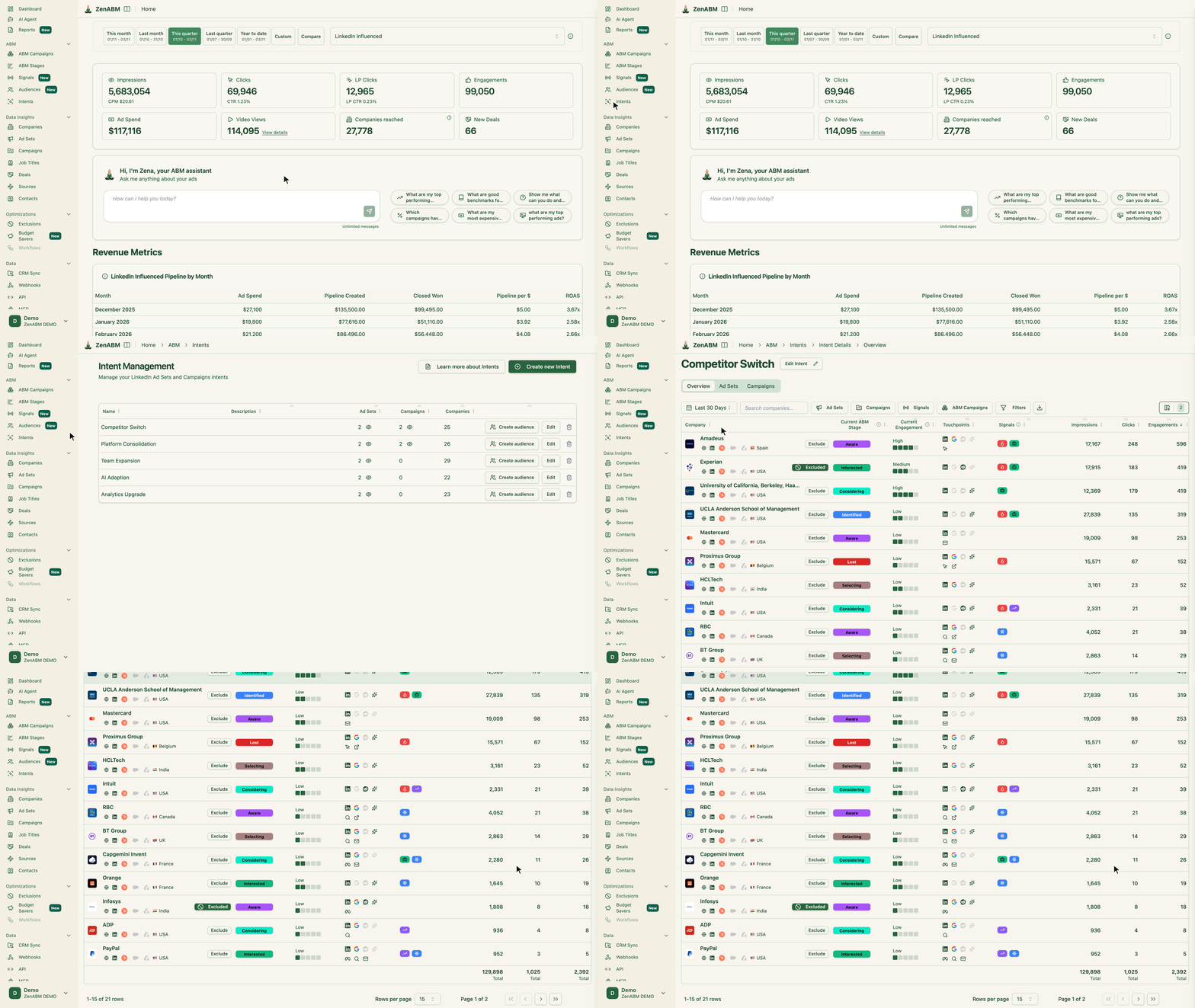
Push intents to show what each account cares about, not just how much it engaged. You tag a campaign or ad set with an intent. When a company engages with it, ZenABM assigns the intent to that company and writes it as a company property.
Say you promote project management software. A company engages heavily with your "productivity enhancement" ad and ignores "secure file sharing". Your BDR instantly knows what to talk about. Tag intents at campaign level, which covers all current and future ad sets. Ad set level is more precise, but it is harder to detect because of LinkedIn's data thresholds. Here is a walkthrough of the Intents feature, from picking an intent to seeing the companies behind it with their ABM stages:
If you want to design campaigns that reveal these preferences, read our guide to running ABM on LinkedIn.
How to push LinkedIn ad engagement to your CRM with ZenABM: step by step
You can connect ZenABM to your CRM in about 10 minutes, and ZenABM backfills 90 days of ad data when you connect. It uses LinkedIn's official Ads API, so there are no browser plugins or cookie hacks. These steps use HubSpot, and the full flow is in the ZenABM documentation.
- Sign up for ZenABM with a company email and verify it.
- Click "Continue setup", then click "Connect LinkedIn".
- Sign in to LinkedIn and complete the verification:

- Back in ZenABM, choose the LinkedIn ad account you want to connect.
- Click "Connect HubSpot", sign in to HubSpot and choose the account:

- Turn on the analytics sync and tick the fields you want. Every field is opt-in, and ZenABM creates the properties for you, so you don't build them by hand. In HubSpot they appear under a ZenABM LinkedIn Metrics group:

- Set the influence rule: ads claim a deal as influenced when the company had 10+ ABM impressions in the 180 days before the deal was created. This keeps companies with too little exposure from being counted, and you set it in the CRM settings.
- Check the matching. ZenABM matches your HubSpot companies to the companies engaging with your ads by domain, name and other data points. You can adjust a match by hand, and you can rerun the matching if records look wrong.
Before you connect, run this checklist:
- Remove duplicate company records in your CRM.
- Check that company domains are filled in, since matching relies on them.
- Decide which fields you want written, and leave the rest unticked.
- Decide whether ZenABM may create new company records (this is an explicit opt-in).
Once connected, LinkedIn ad data syncs weekly, every Monday at 00:00 GMT. ZenABM reads HubSpot deals and lifecycle data daily, and the HubSpot sync shows your pushed data right on the company list:

See which companies engage with your LinkedIn ads
ZenABM shows them even without form fills, then writes the data onto your CRM records.
- No setup fees
- Cancel anytime
- Full support included

Push LinkedIn ad data to HubSpot, Salesforce, Attio and Pipedrive
ZenABM syncs natively with HubSpot, Salesforce and Attio, and handles Pipedrive through webhooks, the REST API or the MCP server. Here are all four side by side: whether ZenABM syncs natively, where the fields land and what comes back.
CRM | Native ZenABM sync | Where the fields land | What flows back |
|---|---|---|---|
HubSpot | Yes | Company records, under a ZenABM LinkedIn Metrics property group | Deals and lifecycle data, read daily |
Salesforce | Yes | Fields on the Account object | Opportunities |
Attio | Yes | Company attributes with a [ZenABM] prefix, 46 available | Deals, pulled nightly with webhooks in between |
Pipedrive | No | Via webhooks, REST API or MCP server | Whatever you build |
HubSpot and Salesforce can run at the same time on one workspace. One agency reads deals from HubSpot and writes engagement fields into Salesforce, so its salespeople see ad engagement in the system they already work in.
Here is this section in one picture:

HubSpot
HubSpot is the most complete route, so this is the LinkedIn ads HubSpot integration most teams start with. ZenABM matches companies with a five-step algorithm: exact domain, exact name, HubSpot's LinkedIn Company URL field, fuzzy domain, then fuzzy name. To turn ABM stages into LinkedIn audiences through HubSpot you need HubSpot Marketing, which is a separate product from HubSpot CRM. A cheaper workaround is to query ZenABM data through the MCP server, or to push a company list through the native HubSpot integration.
Salesforce
ZenABM writes the fields you choose onto the Account object and brings opportunities back. Watch Salesforce's custom field limit per object, which depends on your edition: Salesforce publishes the allocations, from 25 in Starter to 500 in Enterprise. With a low limit, pick only the fields you will use.
Attio
Attio gets 46 available attributes, all created by ZenABM with a [ZenABM] prefix. Companies match on domain after each LinkedIn sync, and deal amounts in mixed currencies are converted to your reporting currency. Salesforce and Attio sync, webhooks, the REST API and the MCP server start on the Growth plan, with a read-only Attio preview on lower plans.
Pipedrive
ZenABM has no native Pipedrive sync today, and Pipedrive is not on LinkedIn's CRM Sync list either. To get ad engagement into Pipedrive, you can send it with ZenABM's webhooks, read it through the REST API or build the sync from the MCP server. Pipedrive's API has a daily token budget that scales with your plan and seats, so batch your writes. In G2 reviews, a ZenABM user who runs Pipedrive says an integration would be a good solution.
Pushing LinkedIn ad data into a vibe-coded CRM: what breaks
A CRM you vibe coded in a week looks like a cheap win, and then it becomes an integration problem. Small teams are building their own CRMs with tools like Claude Code, Replit and Lovable, and I understand why. The trouble starts the day you try to sync anything into one.
Here is what typically breaks:
- No stable schema. A property you write today can be renamed tomorrow, so the sync writes into a field that no longer exists.
- Auto-created and duplicate fields. Vibe-coded apps often invent their own fields, which leads to duplicate and conflicting company records.
- No import validation. A bad domain match writes ad data onto the wrong company.
- No documented API or limits. Without standard API protocols you end up with manual middleware.
- Silent failures. The sync reports success and nothing lands, and Campaign Creators lists silent integration failures as a pitfall of vibe-coded tools.
Salesforce lists similar risks of vibe-coding CRM functions: technical debt, fragile data architecture and integration roadblocks. A custom CRM can still be fine for a small team, so the problem is the sync, not the CRM.
The honest route is to skip the native connector. Use ZenABM's webhooks, REST API or MCP server to write into your own endpoint, and treat the company domain as the join key. Webhooks fire every Monday after the weekly sync, and the filter builder lets you choose which companies qualify.

What to do with the data once it is in your CRM
Once the fields are in your CRM, turn them into plays, each driven by a specific field.
- Alert the owner on a deal-open signal. When a company shows a proven signal, notify the account owner or BDR.
- Open outreach on the intent. The rep references the campaign theme the account engaged with.
- Retarget warm accounts. Launch ads by use case, see which companies engaged with which campaign, cross-reference them with open deals, and retarget high-value ones with follow-up ads for their interest.
- Send to enrichment and sequences. Use webhooks to push accounts that reach the Interested stage into Clay. Our ABM Clay templates are free Clay workflows that take Interested-stage companies from ZenABM, find the right contacts and push them into outreach tools. See ABM with Clay for the full setup.
Building scoring and intent workflows by hand in a CRM takes days. Here is what a HubSpot workflow canvas looks like for intent scoring, and why ZenABM's ready-made version saves time:

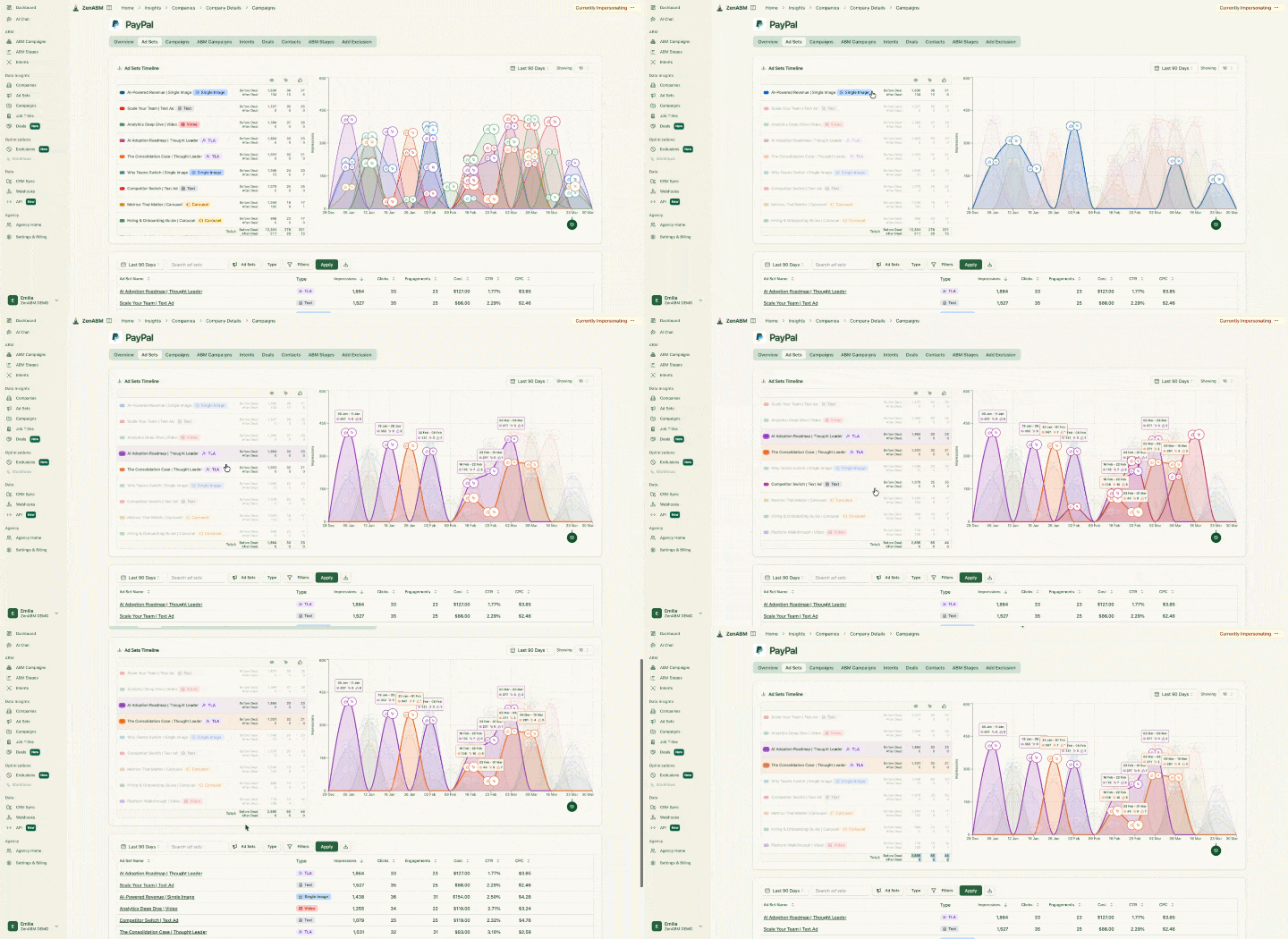
The sync also runs the other way. ZenABM reads deals from your CRM daily and shows the impressions, clicks, engagements and spend before each deal opened and closed. This view of one deal shows each campaign that touched it over time:
For the revenue side, see our post on LinkedIn ad revenue attribution software.
How ZenABM helps with pushing LinkedIn ad engagement to your CRM
- Matching engagement to companies: ZenABM shows every company engaging with your LinkedIn ads, with its score, ABM stage and CRM data on one row, even with no click or form fill, using LinkedIn's official Ads API. It backfills 90 days when you connect.
- Writing fields to the CRM: ZenABM writes engagement by window, campaigns, score, ABM stage and intents onto HubSpot company records, Salesforce Accounts or Attio companies, and it creates the properties itself. Every field is opt-in.
- Scoring and stages: ZenABM moves each account through the ABM stages you define from ad engagement and CRM data, recalculated daily and written back, so you don't build a scoring model in HubSpot.
- Intents: ZenABM turns engagement with themed campaigns into account-level intents and syncs them to the CRM or pushes them over webhooks.
- Deal-open signals: ZenABM tests every Friday which ad signals line up with deals in your own data.
- Reading deals back: The deal attribution dashboard reads deals daily and shows ad touchpoints before each deal opened and closed.
- Routing to other tools: ZenABM's webhooks, REST API and MCP server push engaged accounts to Clay, n8n or any endpoint. They are the route for a CRM without a native connection, including Pipedrive and vibe-coded CRMs, and the MCP server has 129 tools and 45 expert skills.
- Setup help: ZenABM's implementation service builds scoring, dashboards and BDR workflows in HubSpot for teams without RevOps.
Here is where you choose which LinkedIn engagement fields ZenABM writes to your CRM:

On G2, ZenABM is rated 5.0/5 from 6 reviews. One reviewer says "they've built a good API and MCP that we can build stuff on top of." Plans start from $59/month.
If your CRM only knows about clicks, you are guessing which accounts are warming up. Push the seven fields, start with the 7-day and lifetime windows, and let ZenABM create the properties. Which window will you alert sales on first?
See which companies engage with your LinkedIn ads
Sync engagement, scores and intents to your CRM in about 10 minutes, with no CSVs.
- No setup fees
- Cancel anytime
- Full support included

Frequently Asked Questions
How do I push LinkedIn ad engagement data into HubSpot?
Connect your LinkedIn ad account and HubSpot to ZenABM, which creates the company properties for you under a ZenABM LinkedIn Metrics group. You tick the fields you want written. Setup takes about 10 minutes, ZenABM backfills 90 days, and the analytics sync writes to HubSpot weekly.
Can I sync LinkedIn ad data to Salesforce, Attio or Pipedrive?
ZenABM syncs natively to Salesforce and Attio, and to HubSpot, writing engagement, scores, ABM stages and intents onto company records. Salesforce and Attio sync start on the Growth plan. ZenABM has no native Pipedrive sync today, so use webhooks, the REST API or the MCP server to get ad engagement into Pipedrive.
How often does LinkedIn ad data sync to the CRM?
LinkedIn ad data syncs weekly, every Monday at 00:00 GMT, and webhooks fire after that sync. ZenABM reads HubSpot deals and lifecycle data daily, and it backfills 90 days of ad data when you first connect.
Do I need a CRM to see which companies engaged with my LinkedIn ads?
No. ZenABM's Company engagements view shows which companies engaged with your LinkedIn ads, with scores and ABM stages, using LinkedIn's official API and without form fills. A CRM adds deals and pipeline on top, so ZenABM can also show how much pipeline your ads influenced.
Which LinkedIn ad data can be written to company records?
ZenABM can write impressions, clicks, engagements, engagement scores, ABM stages and intents onto company records. Engagement metrics cover lifetime, active ABM campaigns and 7, 14, 30 and 90-day windows. Every field is opt-in, so you only write what you want.
Can I push LinkedIn ad data into a custom or vibe-coded CRM?
Yes, but not through a native connector. Use ZenABM's webhooks, REST API or MCP server to send company engagement to your own endpoint, and use the company domain as the join key. Check that your CRM validates imports and keeps stable field names, or syncs can fail silently.
Is pushing LinkedIn ad engagement to a CRM the same as ABM data enrichment?
Yes, it is one form of ABM data enrichment. Enrichment adds useful account information to your CRM records, and here that information is company-level impressions, clicks, engagements, engagement scores, ABM stages and intents from LinkedIn's Ads API. Sales then sees which target accounts are warming up before anyone fills in a form. ZenABM also shows spend per company and campaign in its dashboard.
About the author