One MCP connection for every client workspace
The ZenABM MCP server puts your clients' LinkedIn Ads and ABM data inside Claude, ChatGPT and Cursor. Connect once, then scope any question, audit or report to the client you are working on.
How it works for agencies
Every client, one connection
List your organizations
Ask which client workspaces the connection can reach and you get them all back, so nobody has to remember which account is which.
Scope every call to one client
Each call carries the organization you name, so a report on one client can never pull rows from another.
Answers say whose data they are
Every response names the organization that served it, which is the check you want when you are five client reports deep on a Friday.
The agency loop
The reporting week, one command at a time
The same 15 expert skills and 105 tools as the single-workspace server, pointed at whichever client you are working on.
- Monday.
/weekly-digestper client: one stakeholder headline, then what moved per campaign, ad set and creative. - Month end.
/linkedin-abm-reportwith a month-over-month comparison, format grades and the campaigns behind deal creation. - Before a QBR.
/linkedin-abm-auditfor a graded verdict and a prioritized fix list you can walk the client through. - Any time spend looks off.
/budget-wastersto find the leaks, and/sales-handoffto hand the client's sales team a list worth calling.
Alongside the app
The dashboards your clients log into, and the commands you work in
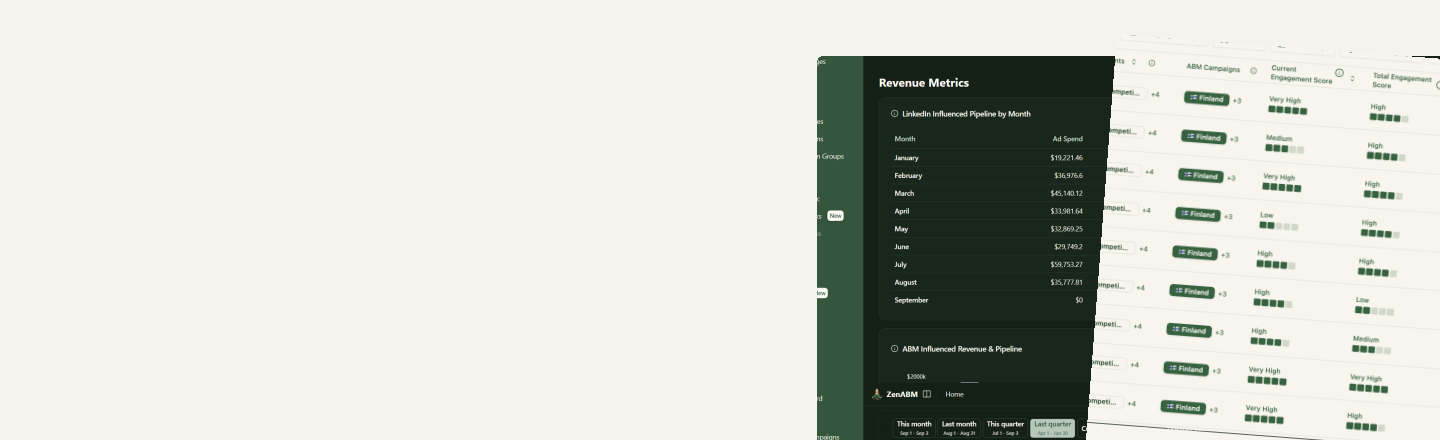
The MCP server is the operator side. ZenABM for LinkedIn Ads and ABM agencies is the client-facing side: a workspace each, with the dashboards that prove what LinkedIn spend returned.
- Clients see their own numbers without seeing anyone else's.
- You read the same data through skills, so the deck you present matches the dashboard they open afterwards.
- Need help standing the program up? Strategy and implementation services build it with you.
How it works
Getting set up
- 1
Connect the MCP server once
Follow the setup on the MCP server page for Claude, ChatGPT, Cursor or Claude Code.
- 2
Check which clients it reaches
Ask for the list of organizations. Every client workspace your account can see comes back, and you pick the one to work in.
- 3
Run the skill
Name the client and the command. The result comes back labelled with that client, ready to paste into a deck or an email.
- 4
Hand the client the dashboard
They log into their own workspace for the live view, while you keep the reporting cadence running from your AI client.