



CRMs like HubSpot have native pixels/trackers that you can put on your site. Your LinkedIn ad clicks will be automatically tracked in your CRM.
But I’d say just tracking LinkedIn ad clicks makes you miss view-through attribution and is a very flawed approach if you are running ABM on LinkedIn.
In this article, we’ll see how to push LinkedIn Ad clicks to your CRM (HubSpot), why this approach has flaws, and what the best solution is.
Before we see stuff like installation steps, it’s important to clarify what you mean by pushing LinkedIn ad clicks to your CRM.
The least it means is being able to see the clicks generated by each LinkedIn ad campaign.
That is something you can do by just setting up a LinkedIn ads HubSpot integration via the following steps:
1. Open your HubSpot account and navigate to the settings by clicking the gear icon in the top navigation bar.
2. From the left-hand menu, go to Marketing > Ads. 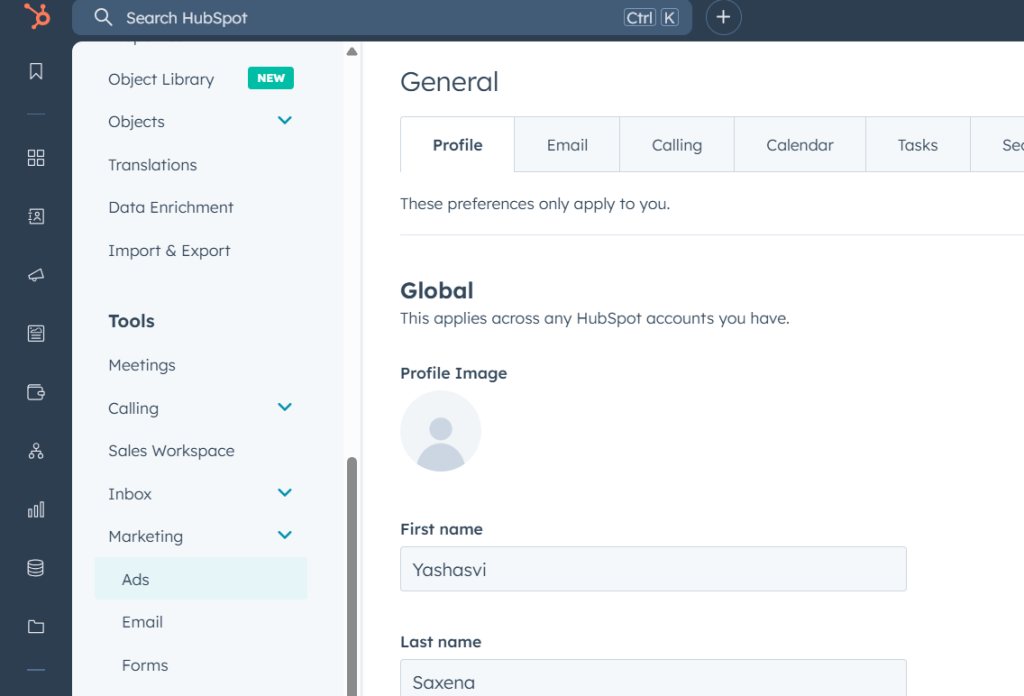
3. Click on Connect Account in the upper right corner.
4. In the dialogue box, choose LinkedIn as the platform to connect. 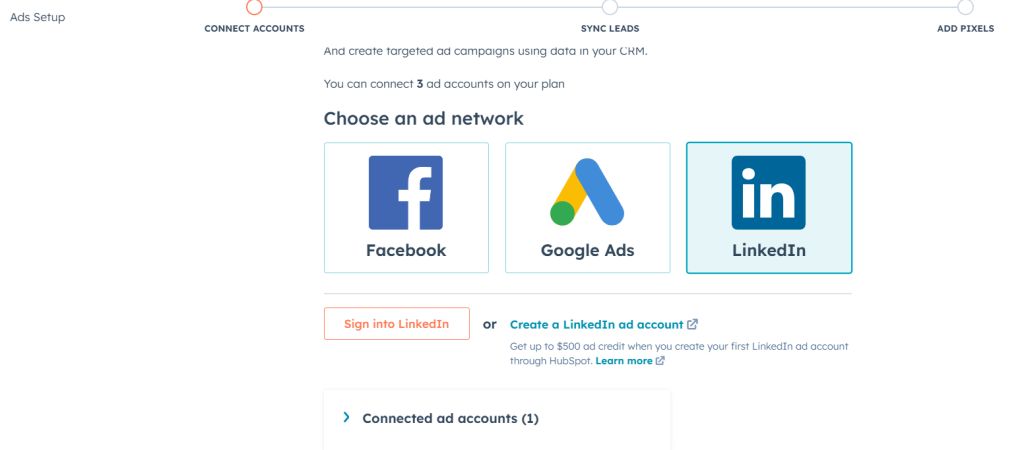
5. A LinkedIn login window will appear—sign in to your LinkedIn account, review the required permissions, and click Allow.
6. Select the LinkedIn Ads accounts you want to link with HubSpot. To enable contact tracking for ad interactions, keep the auto-tracking option switched on. 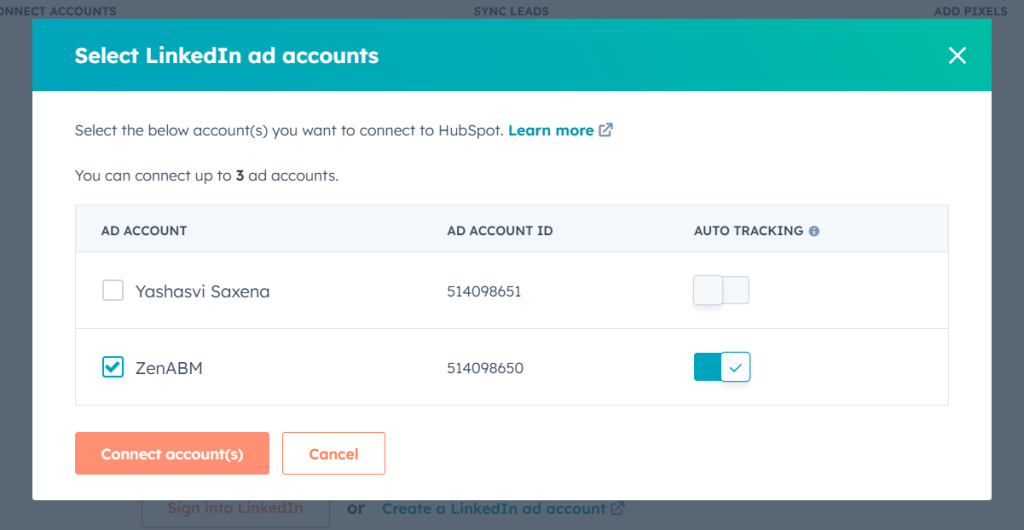
7. Click Connect to complete the process.
After setting up this connection, you’ll be able to see the number of ad clicks, impressions, spend and other metrics of each LinkedIn campaign in your HubSpot ads tool:

Now, if you also want these ad clicks to be associated with people/visitors, i.e if you want your HubSpot CRM to know if a site visitor or lead came from LinkedIn for tracing and attribution, you need :
The Hubspot tracking code (JavaScript snippet) can be installed on your website to monitor visitor behaviour. This code sets cookies in visitors’ browsers, allowing HubSpot to track page views and other interactions.
As soon as the visitor fills a form on your site, the visitor is then identified and also associated with the LinkedIn ad click.
To install the HubSpot tracking code on your website, follow these steps:
1. Retrieve Your HubSpot Tracking Code:
Log in to your HubSpot account. Click the Settings icon in the top navigation bar. Navigate to Tracking & Analytics > Tracking Code.
In the Embed code section, click Copy to copy the tracking code to your clipboard.
2. Add the Tracking Code to Your Website:
Paste the tracking code just before the closing </body> tag in the HTML code of each page you want to track.
If your website uses a content management system (CMS), you can often add the code to a global footer file to include it across all pages.
3. Verify Installation:
After adding the tracking code, you can verify it’s working by checking your website’s source code to ensure the script is present.
Alternatively, use browser developer tools to confirm the script is loading without errors.
After we have discussed how to push LinkedIn ad clicks to your HubSpot CRM, let’s explore why a narrow click-through approach is heavily flawed, especially for LinkedIn ads and the solution.
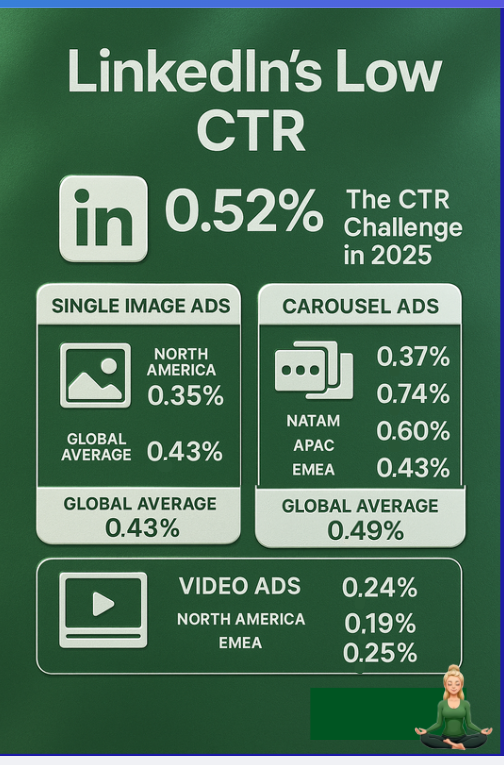
Let’s be real—most people who see your LinkedIn ads won’t click on them.
With click-through rates hovering around 0.4-0.5% on sponsored posts, nearly all of your audience might engage passively without ever clicking.
Picture this: a key decision-maker at a target account sees your ad several times over two weeks but never clicks. Then they search your brand and land on your site. If your CRM only tracks clicks or form fills, you’ll miss that entire interaction. Sales won’t know the account is warming up, and marketing can’t tie that exposure to the eventual opportunity.
That’s how LinkedIn turns into a blind spot.
Solution?
Pushing LinkedIn ad impressions and engagements, and not just clicks to your CRM. Also, these engagement metrics should be rolled up to the whole ad account and be anonymous. Thus must be associated with an account/company and the specific LinkedIn ad campaign and campaign group they belong to.
Here’s how it helps:
And no, this push shouldn’t be manual. It should be automatic and continuous.
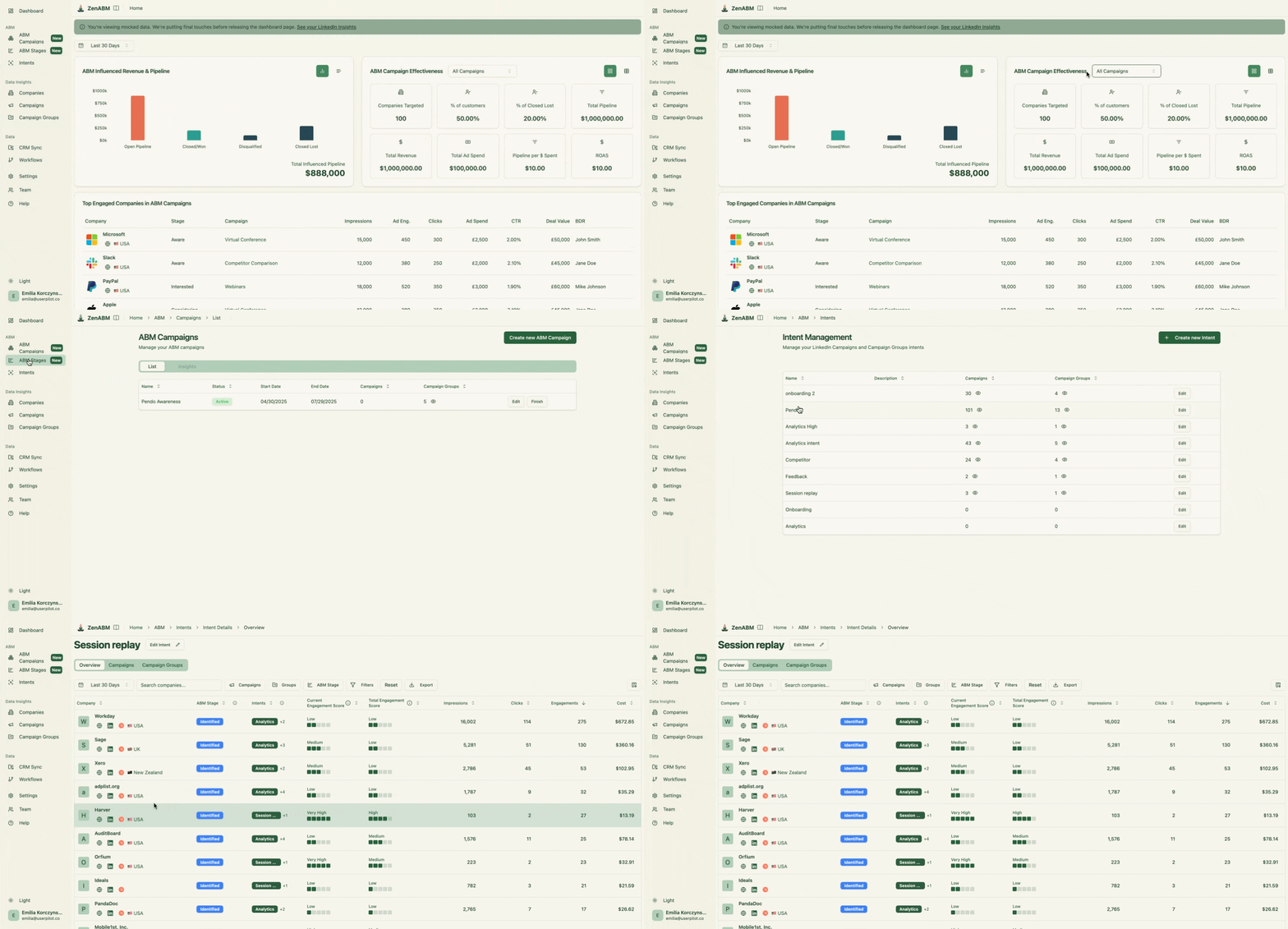
How can you actually bring crucial LinkedIn engagement insights into your CRM?
That’s exactly what ZenABM is designed to do.
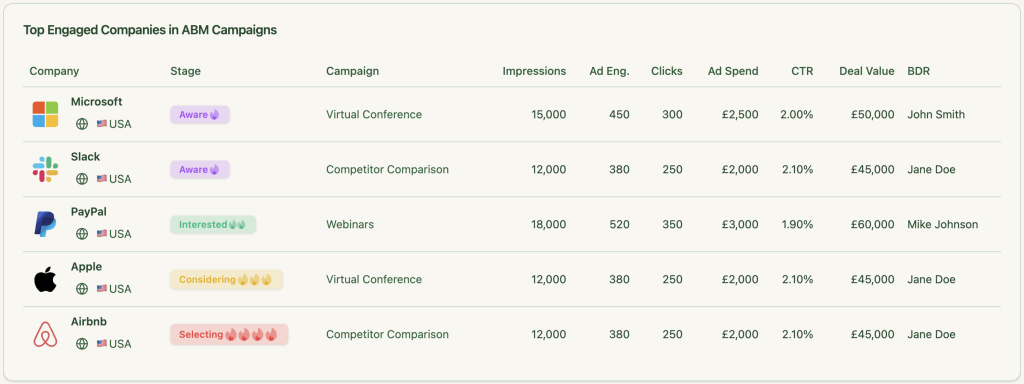
With ZenABM’s dashboards, you’ll see detailed company-level impression data for each LinkedIn campaign or campaign group.
It also lets you monitor engagements, clicks, and ad spend, organized by company for every campaign:
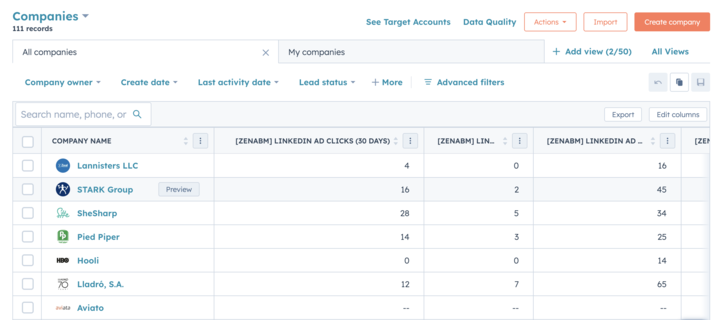
You can then sync these ad impressions and engagement insights into your CRM as a unified company property.
Here’s what that looks like in HubSpot, for example:

Integrating ZenABM with your CRM to sync ad engagements takes just a few straightforward steps:
1. Begin by signing up on ZenABM using your company email and confirming it.
2. Next, hit “Continue setup” and select the “Connect LinkedIn” option:
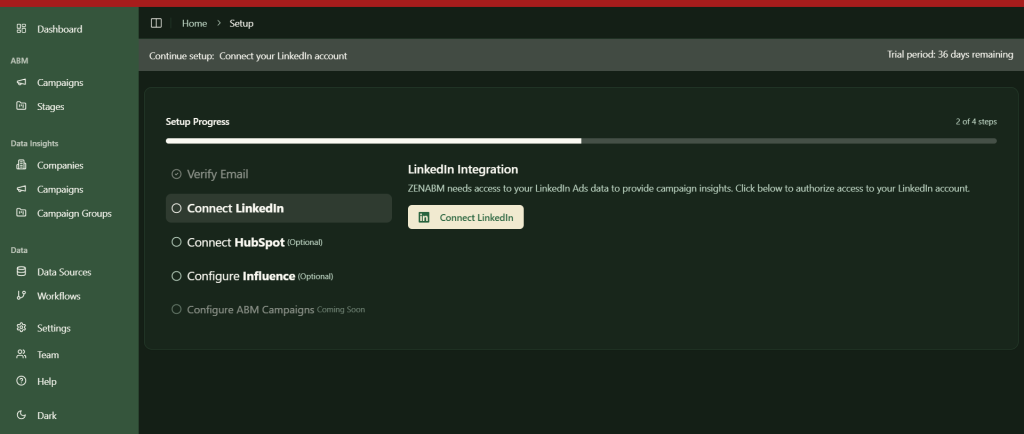
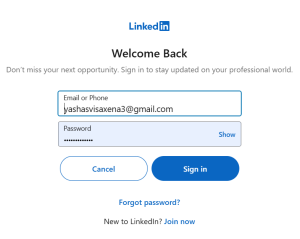
3. Log into your LinkedIn account and complete the verification step:
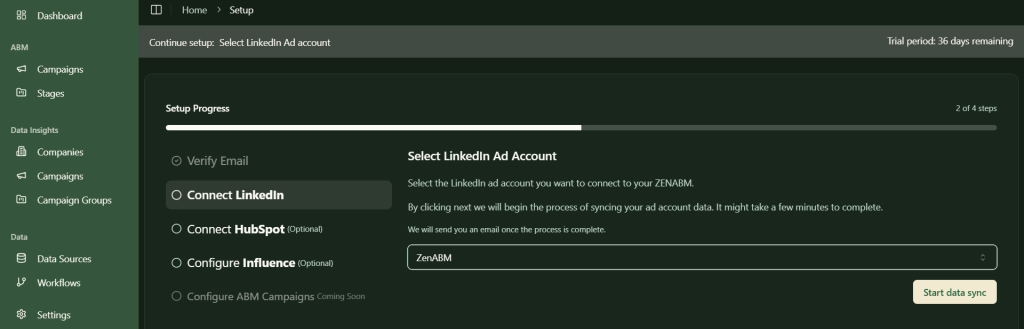
4. After verification, you’ll return to ZenABM and be prompted to select the LinkedIn ad account you’d like to sync:
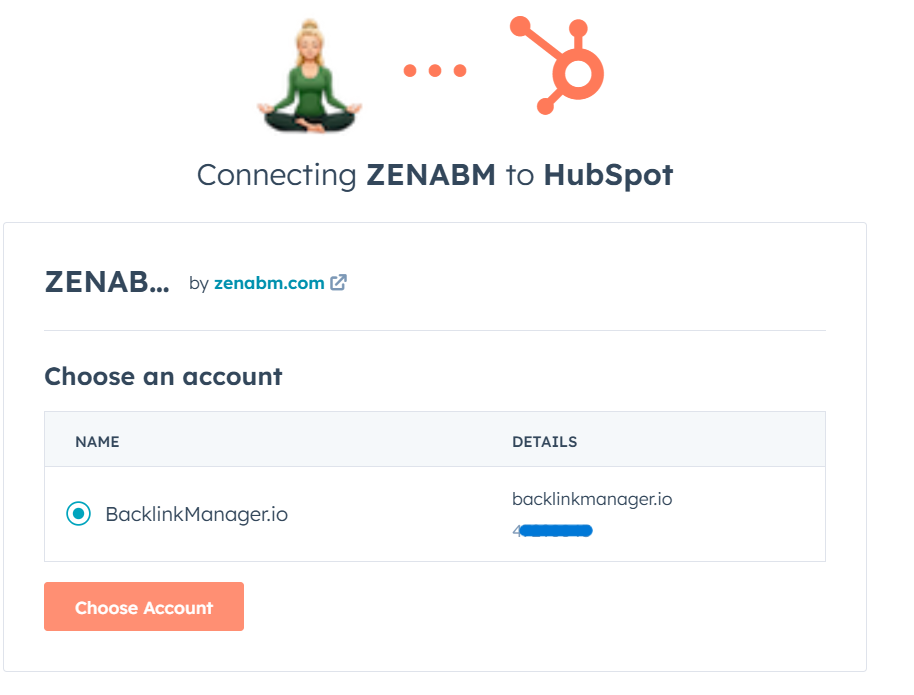
5. Now, click the “Connect HubSpot” button, log in to your HubSpot account, and select the appropriate portal:
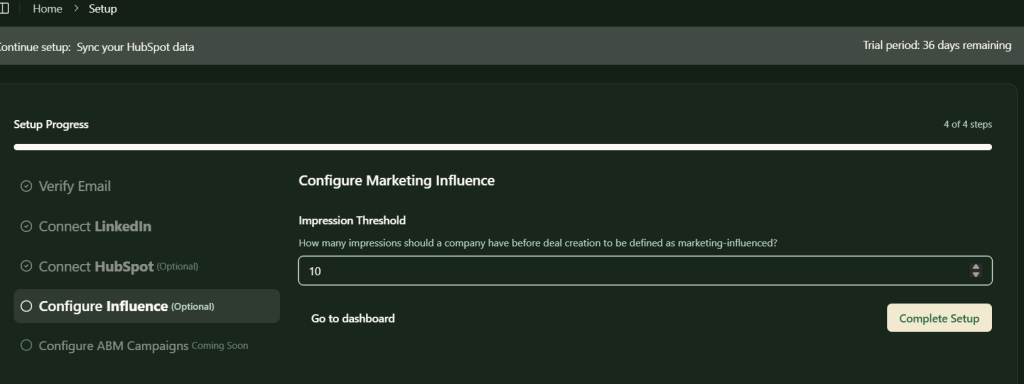
6. Finally, set the minimum number of impressions a company should have before it qualifies as influenced by your LinkedIn campaign. This helps avoid pushing low-engagement accounts into your CRM.
Once you’ve completed these steps, your integration is live. ZenABM will start pushing company-level engagement metrics for each campaign directly into your CRM.
ZenABM doesn’t stop at pushing ad clicks/engagements to your CRM. It brings a whole suite of features to supercharge your LinkedIn ABM strategy:
ZenABM tracks the latest ad interactions at the company level, not just historical data. It generates a live “Current Company Engagement Score” over periods like the past 7 days, flags your most active accounts, and automatically updates their ABM stages in HubSpot.
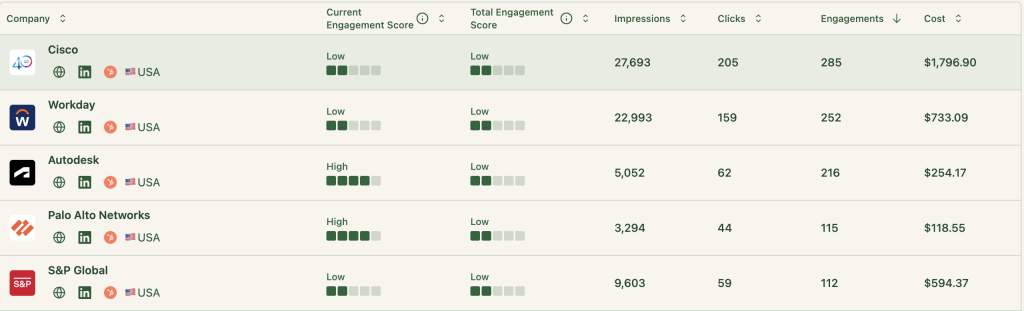
It also automatically assigns BDRs to accounts that meet a certain engagement threshold:
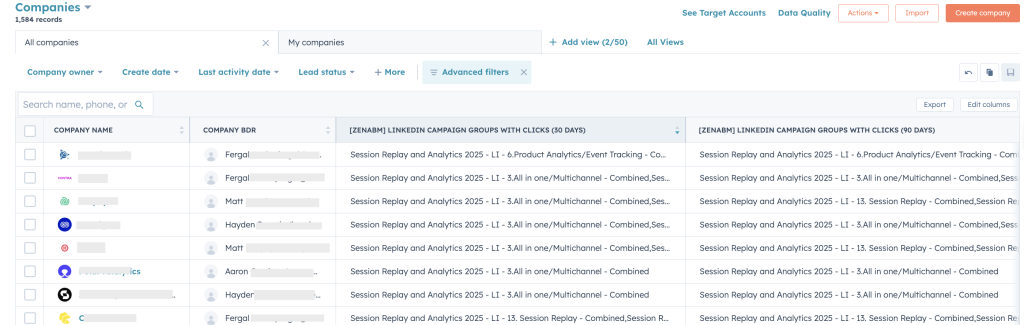
This is native automation—no need for custom workflows in Zapier or HubSpot.
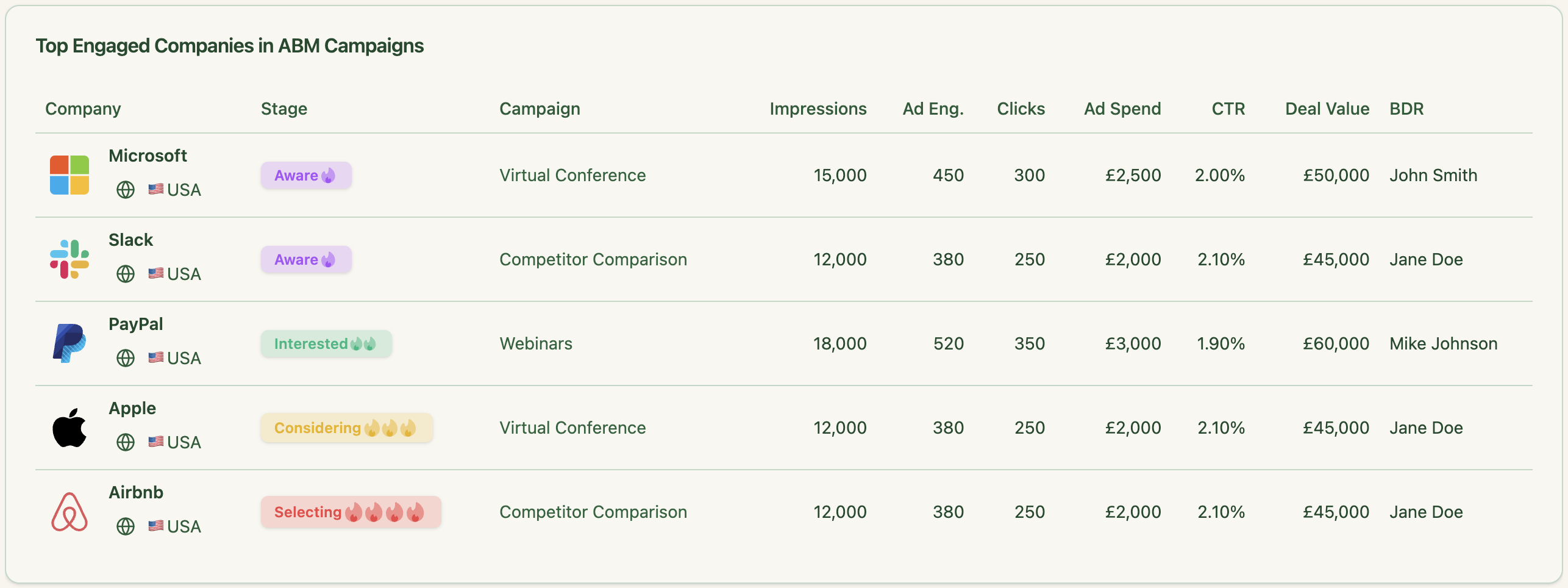
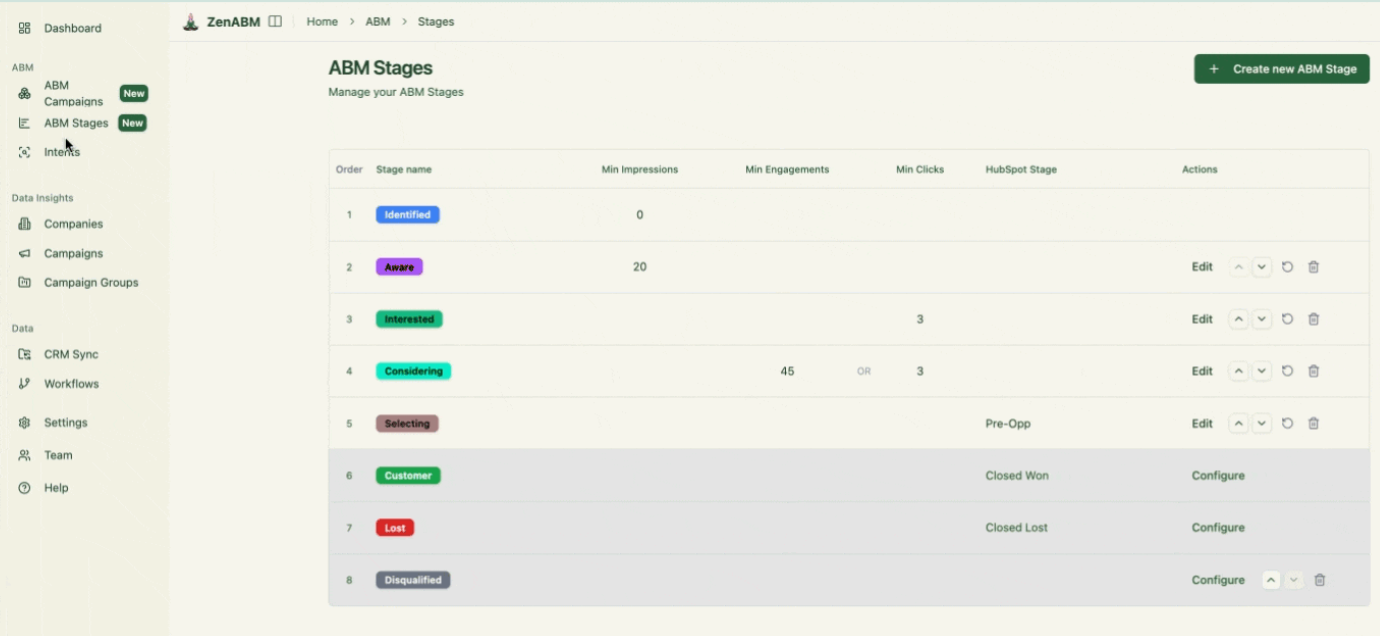
ZenABM maps out every account’s ABM stage using a combination of ad activity and CRM signals:
You can tailor the criteria for each stage to fit your process:
ZenABM doesn’t just push data to your CRM—it also pulls insights back. It connects LinkedIn ad-engaging companies to your CRM deals and shows deal value alongside their engagement:
You’ll also see clear visualizations of how your ad campaigns are contributing to the sales pipeline and revenue:
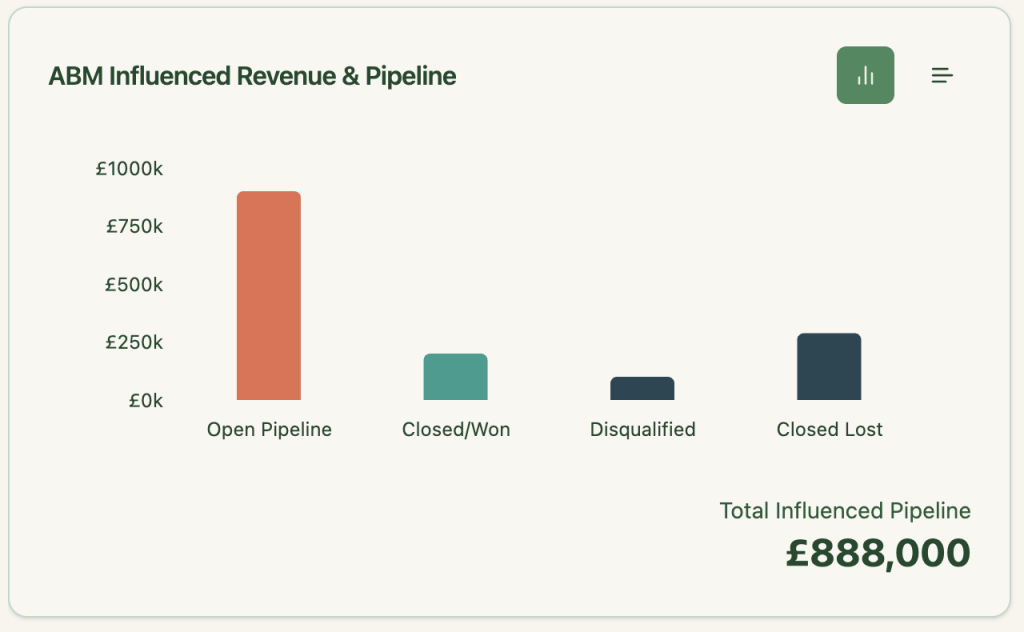
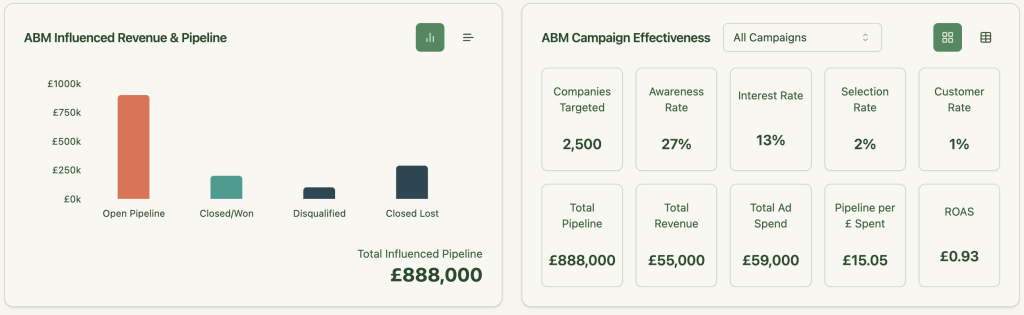
ZenABM includes out-of-the-box dashboards with actionable metrics like pipeline value, revenue, ad spend, ROAS, and more, all segmented by account:
ZenABM shows which companies interacted with which LinkedIn campaigns or groups, making follow-up targeting seamless.
Here’s how you can act on that:
Buyer intents come into play if your campaigns are tailored to different use cases or pain points. For instance, if you’re promoting project management software and notice a company engaging heavily with your “productivity enhancement” ad but ignoring the “secure file sharing” one, your BDRs instantly know what they should talk about during their outreach.
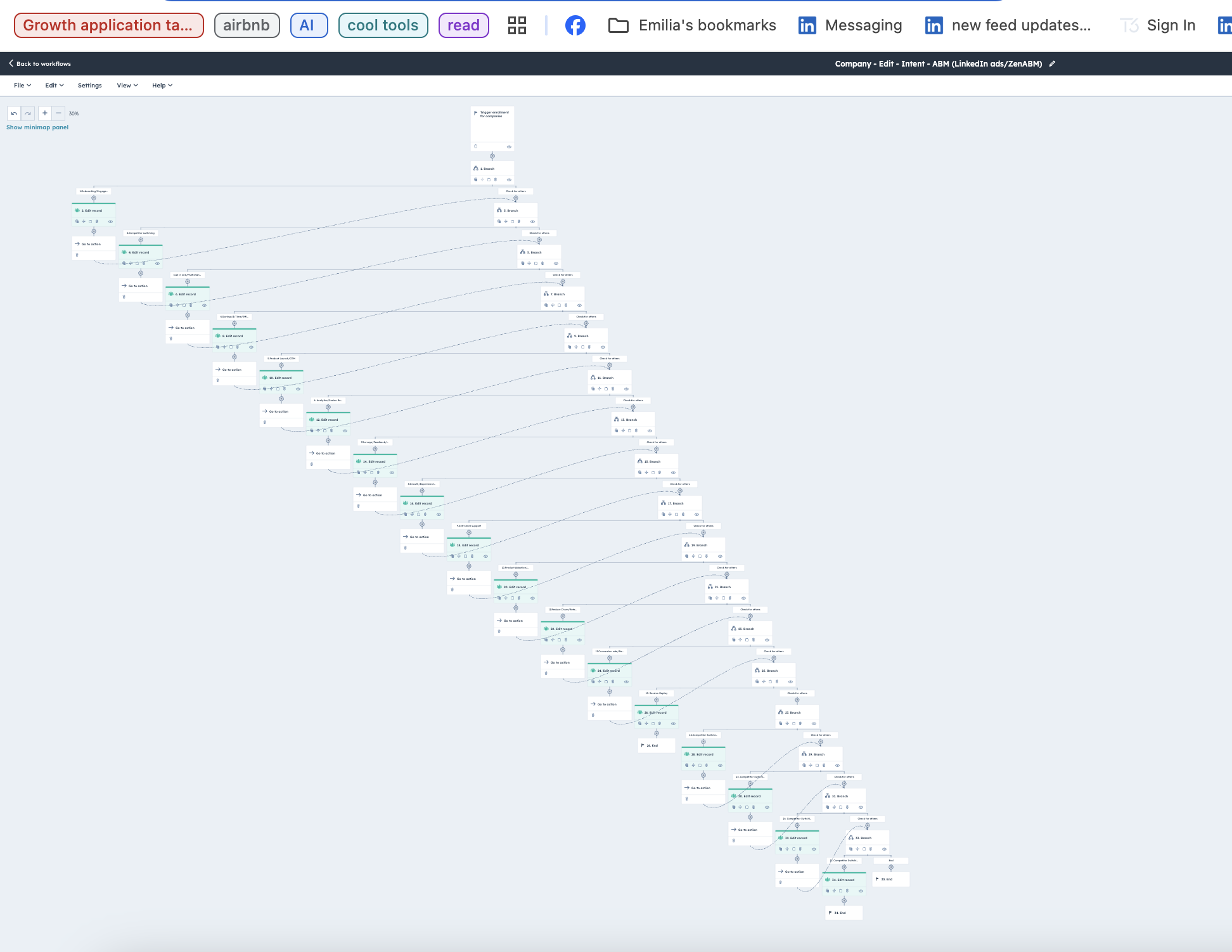
But trying to build such a workflow for multiple campaigns in your CRM like HubSpot would take days if not weeks.
Here’s how complex such a workflow seems in HubSpot:
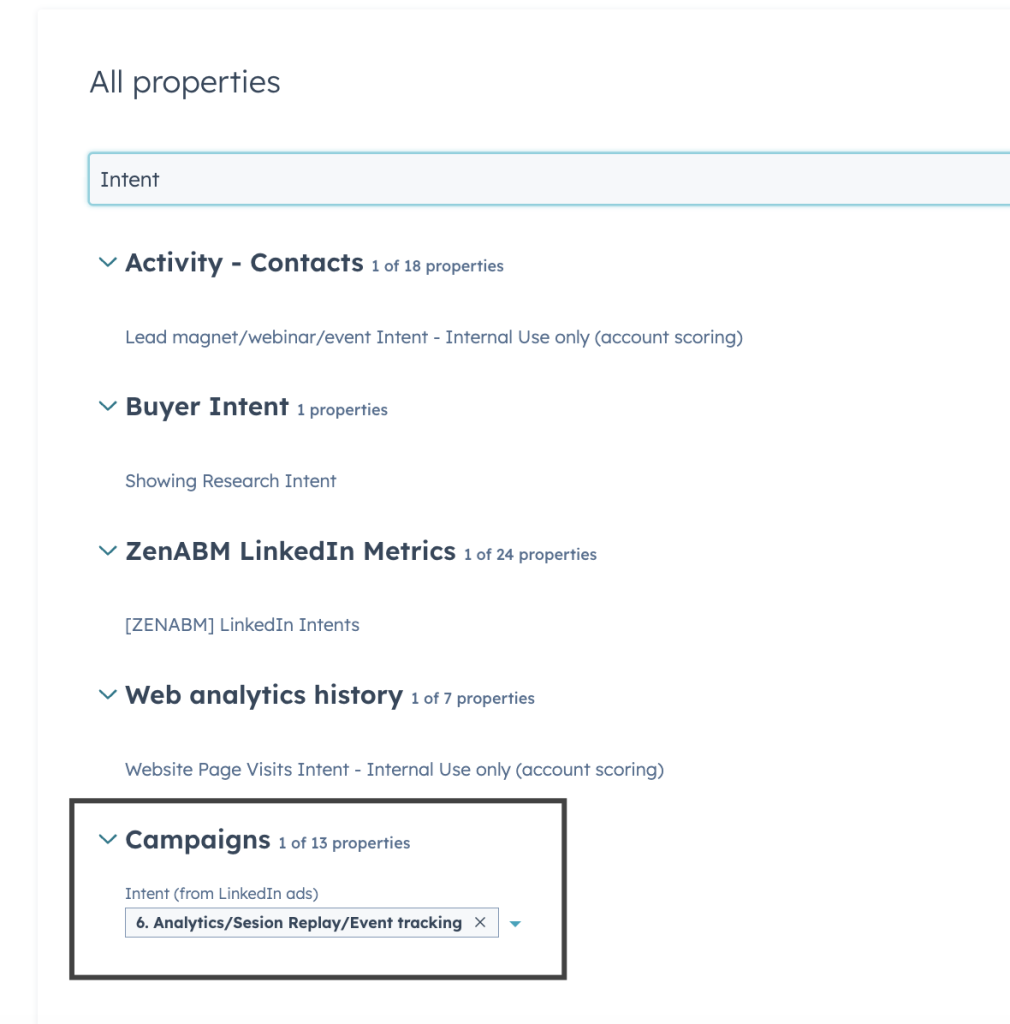
But at ZenABM, you have this ready-made for you. You can set intent(s) to each campaign/campaign group and ZenABM will then group companies showing similar intent:
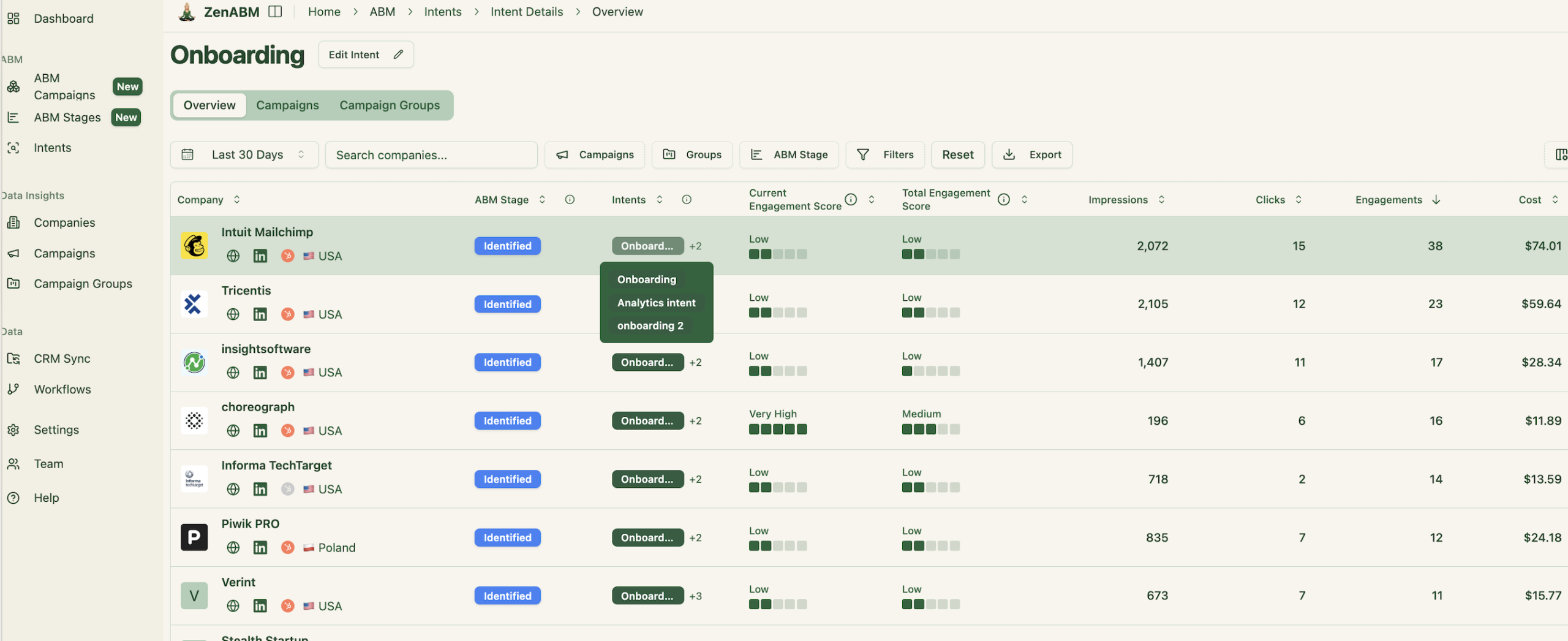
Then you can push the same into HubSpot as company property:
If you want to learn more about designing LinkedIn campaigns that reveal your prospects’ feature/use-case preferences, check out our guide on running ABM campaigns using LinkedIn ads.
LinkedIn ads don’t just drive clicks (in fact, people rarely click on LinkedIn). They build invisible intent. And if your CRM can’t capture that intent, you’re flying blind. ZenABM bridges this gap by pushing company-level LinkedIn ad engagement data (impressions, reactions, etc. and not just clicks) straight into HubSpot, scoring accounts in real-time, assigning BDRs, and tying ad engagement to actual revenue.
Start turning invisible engagement into visible pipeline — book a ZenABM demo today.
