



You can connect your LinkedIn ads account to your HubSpot CRM in just a few steps, and then you’ll be able to manage your LinkedIn ad campaigns from HubSpot’s ads tool.
In this article, I’ll show you exactly how to set up this integration but also a better alternative.
Let’s get started!
1. HubSpot Native Integration Steps:
2. Limitations of HubSpot Ads Tool:
3. Why ZenABM is Better:
4. How ZenABM Integration Works:
HubSpot has a dedicated tool called HubSpot ads tool where you can integrate your LinkedIn, Facebook or Google ads account in a few steps and then manage your ads natively from HubSpot.
But before we jump on to the steps, here are some prerequisites for connecting your LinkedIn ads account to HubSpot:
a. If your LinkedIn Ads account is on hold, it won’t connect to HubSpot. Also, if an already connected LinkedIn ads account gets put on hold, HubSpot will remove the connection. You’ll be able to see an error like this in HubSpot for any such inactive account:
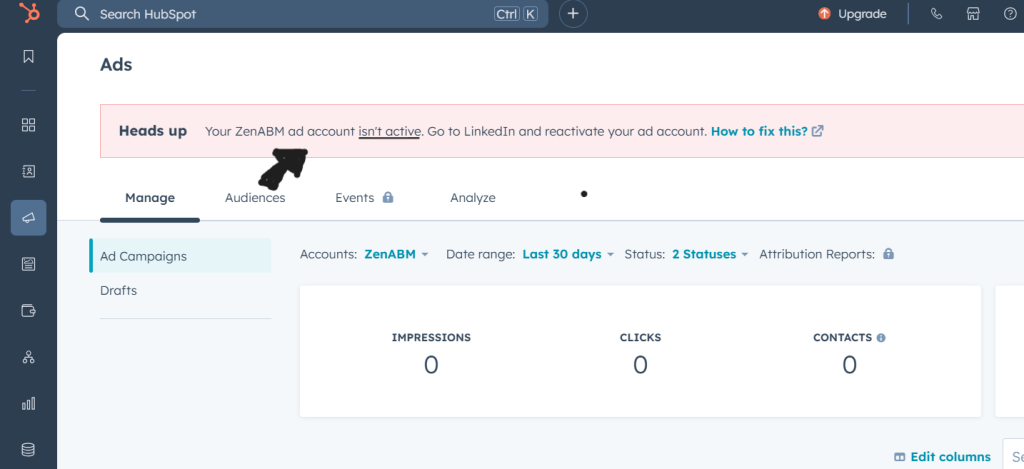
Here’s a table showing the most common reasons why your LinkedIn ads account might be inactive and their solutions:
| Ad Account Status | Common Reasons | Recommended Steps |
|---|---|---|
| On hold – Missing Payment Info | New ad account without added credit card details. | Add a valid credit card to the Billing page. |
| On hold – New Billing Admin | The billing admin was changed, requiring a payment info update. | Update payment details on the Billing page; the account stays on hold until updated. |
| On hold – Payment Processing Issue | The credit card was declined due to spend limit, mismatched billing info, or bank restrictions. | Contact the bank to resolve declined transaction issues, then re-add or replace the credit card. |
| On hold – Expired Credit Card | The credit card on file has expired. | Update credit card details on the Billing page. |
| On hold – Indian Credit Card Approval Needed | Indian-issued credit card requires transaction approval. | Approve the charge via your bank’s online platform. |
| On hold – Unpaid Balance in Other Accounts | Unpaid invoices in another ad account under the same billing admin. | Settle outstanding invoices in other ad accounts; creating new accounts is blocked after 5 unpaid invoices. |
| On hold – Spam/Fake Account User | Ad account user flagged as spam or fake. | Remove restricted user from the account or contact support. |
| On hold – Enterprise Account End Date Reached | The enterprise ad account’s end date has passed. | Contact a LinkedIn representative for assistance. |
| On hold – Enterprise Account Budget Reached | The enterprise ad account’s budget has been reached. | Reach out to a LinkedIn representative for resolution. |
| On hold – Enterprise Account Budget & End Date Reached | Both the budget and end date for the Enterprise ad account have been reached. | Work with your LinkedIn representative to resolve the issue. |
| On hold – Inactive Account (Pre-2024) | Inactive ad account with no invoices before 1/1/2024. | Create a new ad account; contact support for past invoices (if invoiced before 12/13/2023). |
For more details, you can check LinkedIn’s Troubleshooting Documentation.
b. Ensure to turn off any ad blockers on your browser.
c. The user who is connecting the LinkedIn ads account must have publishing permission to the HubSpot ads tool.
d. The user must also be the account manager of the LinkedIn ads account that’s going to be connected. If you are not sure about your permissions, go to the LinkedIn Campaign Manager. choose the LinkedIn ads account and click on “Manage access” in the right panel and you’ll be able to see if you have the account manager status:
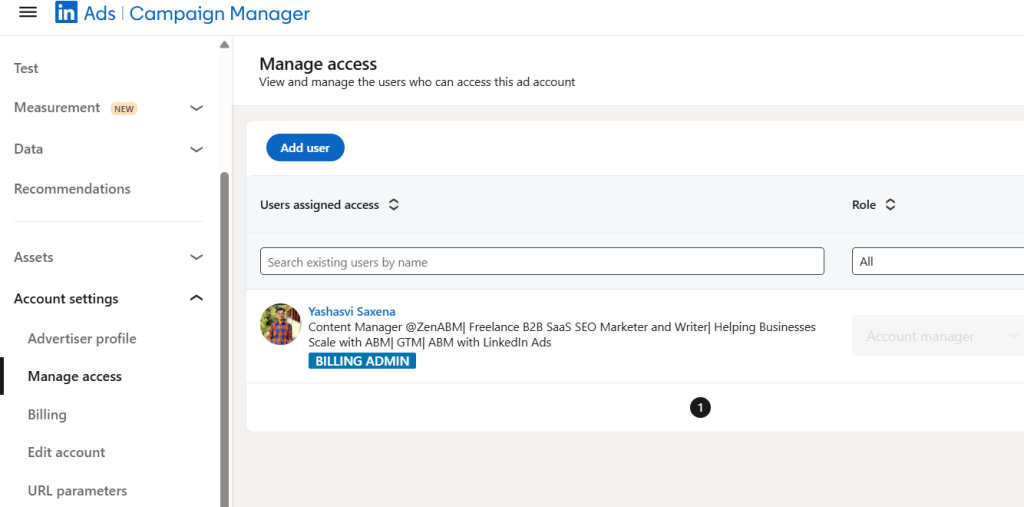
Now, after ensuring you meet the prerequisites, follow these steps to connect your LinkedIn ads with HubSpot:
1. Open your HubSpot account and navigate to the settings by clicking the gear icon in the top navigation bar.
2. From the left-hand menu, go to Marketing > Ads. 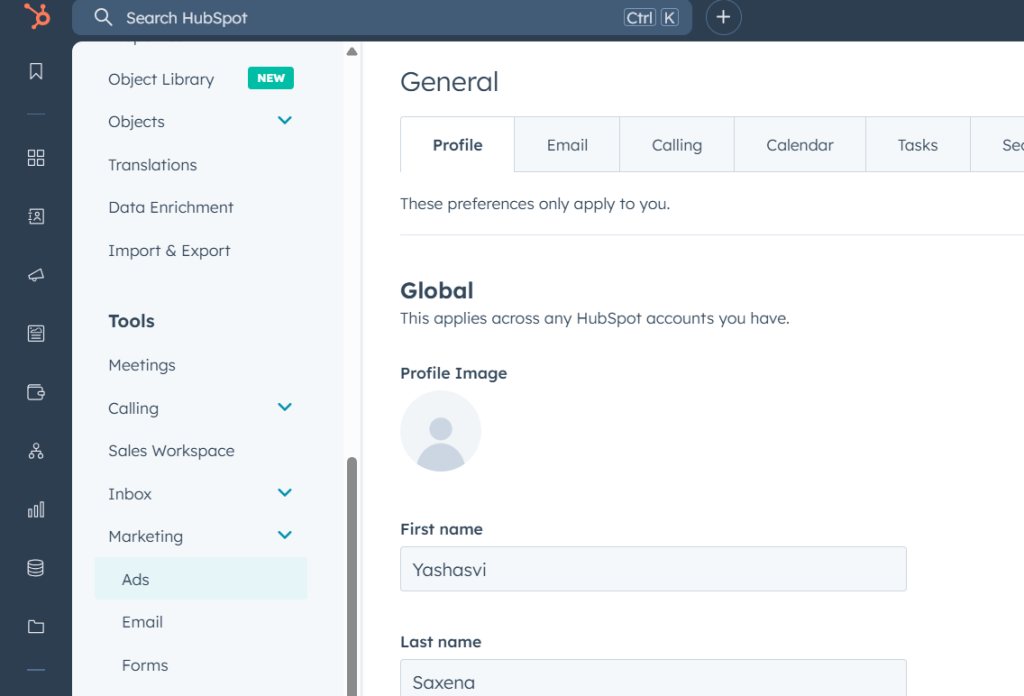
3. Click on Connect Account in the upper right corner.
4. In the dialogue box, choose LinkedIn as the platform to connect. 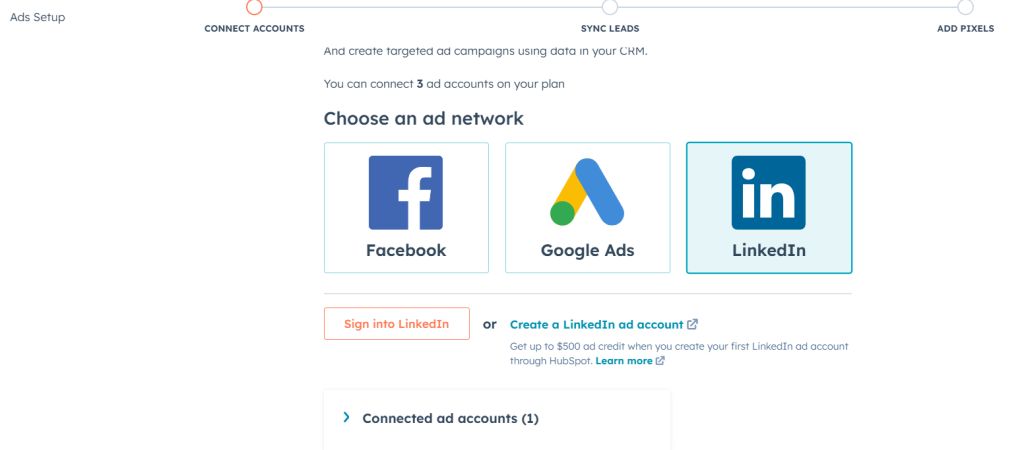
5. A LinkedIn login window will appear—sign in to your LinkedIn account, review the required permissions, and click Allow.
6. Select the LinkedIn Ads accounts you want to link with HubSpot. To enable contact tracking for ad interactions, keep the auto-tracking option switched on. 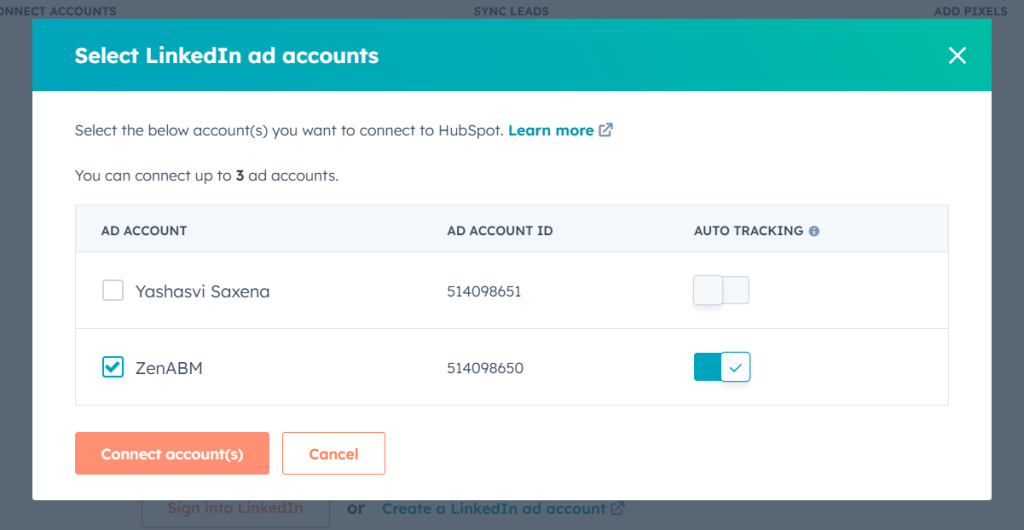
7. Click Connect to complete the process.
Finally, you’ll be able to see your LinkedIn ads account connected to your HubSpot ads tool!
The native integration of LinkedIn ads with HubSpot in the HubSpot ads tool has various limitations and here’s how ZenABM fills those gaps:
LinkedIn Campaign Manager provides about 20-25 company names at max that engaged wth your LinkedIn ads and the same limited data is pushed into the HubSpot ads tool, making them insufficient for ABM.
In fact, the HubSpot ads tool is pretty basic:
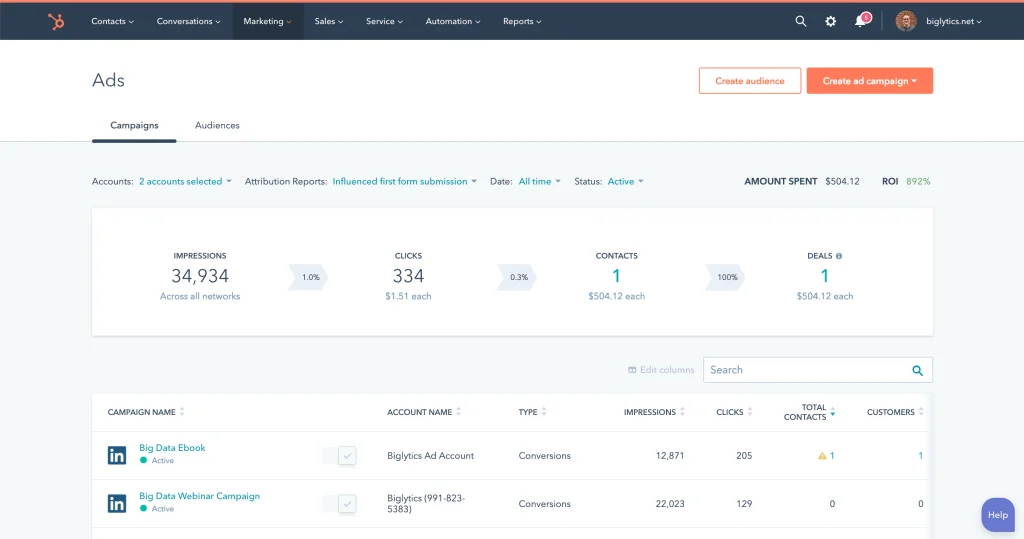
ZenABM solves this by showing you company-level ad engagement data for each campaign/campaign group:
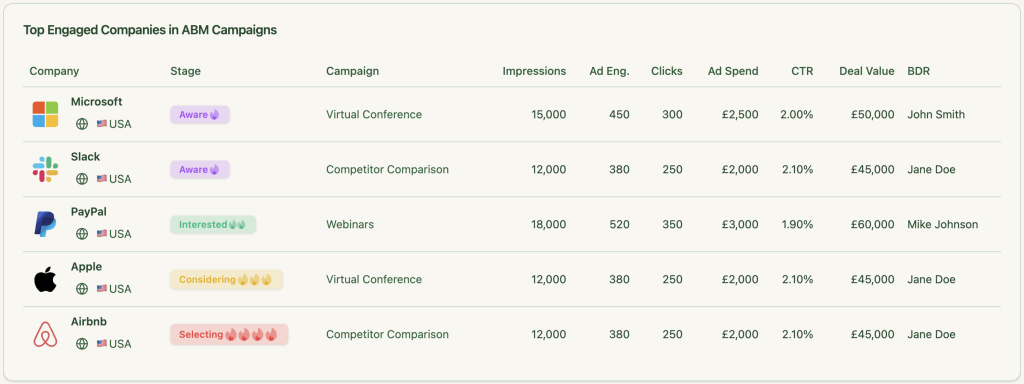
As the HubSpot ads tool or LinkedIn campaign manager doesn’t provide company-level ad engagement data per campaign, marketers flock to third-party solutions.
Following are the flaws of these thirty-party solutions and how ZenABM solves them:
Tools that claim to reveal the names of your website visitors can only help when a user clicks on your ad and visits your website. This doesn’t help with revealing the ones who didn’t click but only left impressions.
Also, these tools (e.g. RB2B, Warmly, Demandbase, etc.) work on reverse IP lookup. In this method, an IP address is matched to a specific organization, often through public or private databases of known IP addresses. This means these tools decipher company names, not people.
Additionally, these tools aren’t accurate. If the site visitor is using a VPN or a shared network (say your visitor prefers working in Starbucks), the IP lookup won’t match the right company.
In fact, according to a study by Syft – Clearbit is the most accurate of many popular deanonymization services and its accuracy is just 42 per cent.

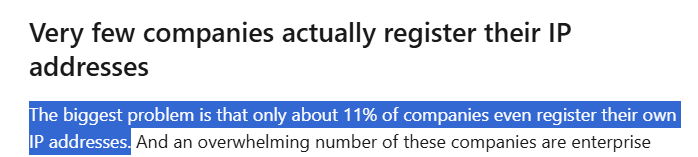
Additionally, most companies don’t even register their IP addresses as pointed by Kyle Ackerman in her article:
As these tools give only company-level data, are highly inaccurate and cannot reveal companies that leave impressions but don’t click, why not switch to first-party intent signals?
ZenABM solves this by pulling company-level first-party intent data per campaign using LinkedIn’s official API.
This ensures:
Another solution used by marketers is a Display Ad Network (DAN) like Adroll, Criteo, etc.
A DAN uses third-party cookies and device fingerprinting to track users across websites. It then matches their behaviour to existing DMP (Data Management Platform) profiles to identify their company, industry, and sometimes job title.
These DANs are ineffective because:
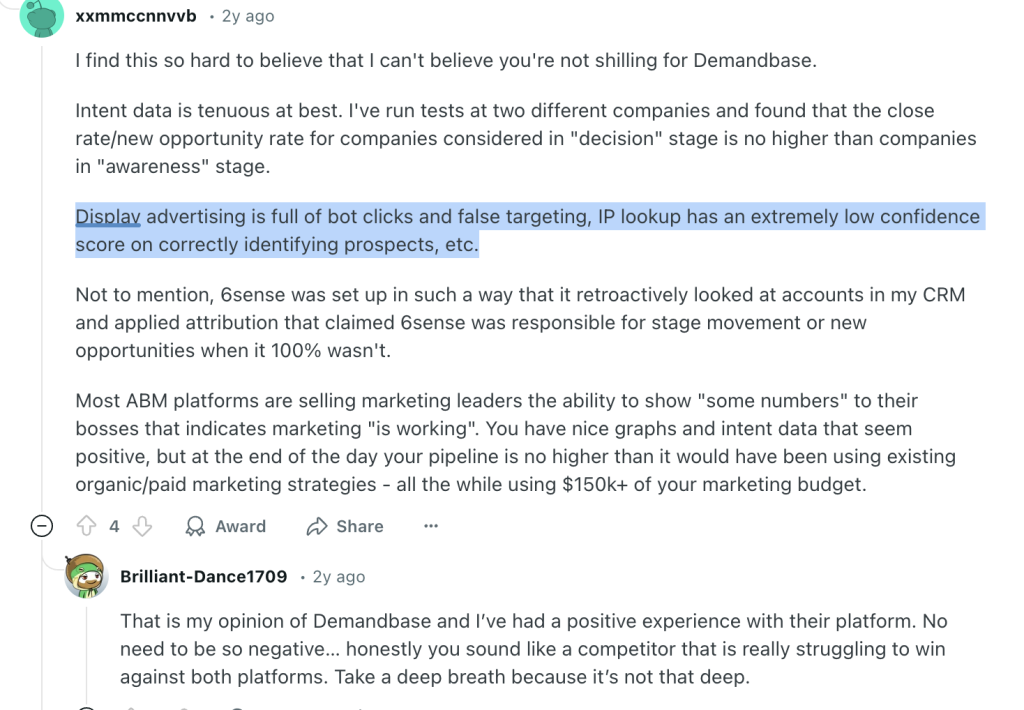
So, just like website visitor deanonymization tools, DANs have several limitations.
ZenABM breaks these limitations by pulling company-level first-party data per campaign using LinkedIn’s official API.
This ensures:
In conclusion, third-party tools that claim to reveal companies engaging with your LinkedIn ads are just playing guessing games, while ZenABM pulls read data provided by LinkedIn.
Scoring your leads is essential to any ABM campaign. It ensures your BDRs won’t spend time reaching out to inactive leads. However the HubSpot ads tool provides no lead-scoring workflow, and experts have to spend days if not weeks building them.
ZenABM automatically scores company engagement based on recent LinkedIn interactions, not just historical engagement. It calculates a Current Company Engagement Score within your selected timeframe (e.g., the last week). Hottest accounts are identified instantly, and their ABM Account Stages update in HubSpot automatically.
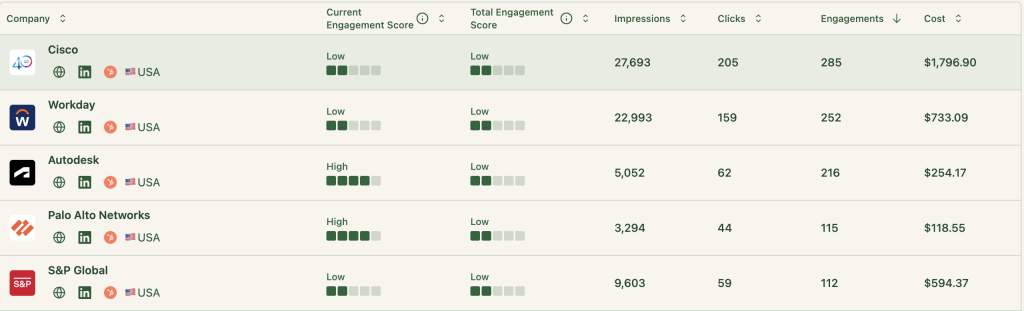
With ZenABM, your marketing and sales team stay on the same page.
ZenABM assigns your BDRs to accounts in the “interested” stage automatically and pushes this information instantly to your HubSpot CRM:
HubSpot ads tool has no such automation and you’ll have to do it manually.
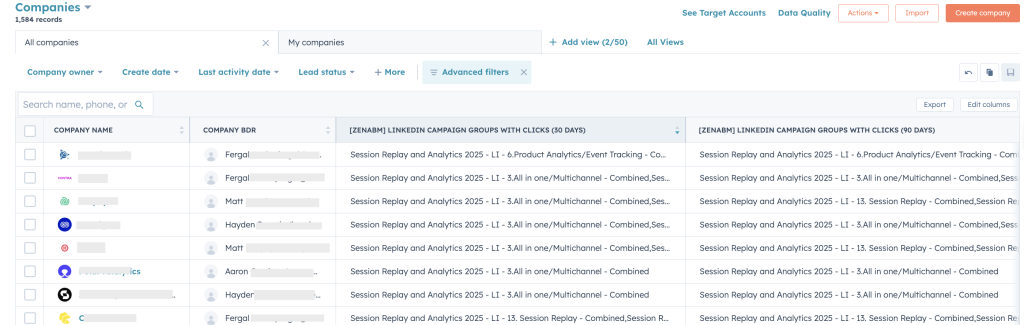
ZenABM, a LinkedIn ads HubSpot integration solution, fetches all company-level engagement data for specific campaigns from LinkedIn API. Then, it pushes all engagement data into HubSpot as a single company property (text string) to use as “intent” on the company and contact levels.
For example, Userpilot wanted to push LinkedIn ad engagement data to HubSpot CRM on a company level for each campaign/campaign group.
As this wasn’t natively supported in HubSpot, they used ZenABM.
How ZenABM Worked:
ZenABM synced both quantitative data (e.g., impressions, clicks) and qualitative data (e.g., each company’s engagement metrics with each specific campaign) from LinkedIn Campaign Manager to HubSpot.


These engagement metrics were pushed to HubSpot as company properties like “LinkedIn Ad Engagements – 7 days” and “LinkedIn Ad Clicks – 7 days,” and were updated weekly.
Workflows in HubSpot accumulated these metrics over time into properties like “Cumulative LinkedIn Ad Engagements” and “Cumulative LinkedIn Ad Clicks,” providing a running total for each account.
Also, Linkedin refuses to show engagement data if the interactions per company are less than 3 in a specific time period. ZenABM solved this by aggregating data at the campaign-group level.
This ensures your marketing and sales folks can see each company’s engagement with each specific campaign, without manually updating these details in HubSpot.
Now, if you build different LinkedIn ad campaigns based on user intent/use case, this will help your BDRs reach out to your leads with highly personalized messages. Say, you sell project management software. Now, if you see a company significantly engaging with your “productivity enhancement” ad and not “safe file management” ad, you know what to talk about in your outreach email/message.
If your salespeople sit to build an intent recognition workflow natively in HubSpot, it would take hours, if not days to build.
Here’s how such a workflow looks in HubSpot:
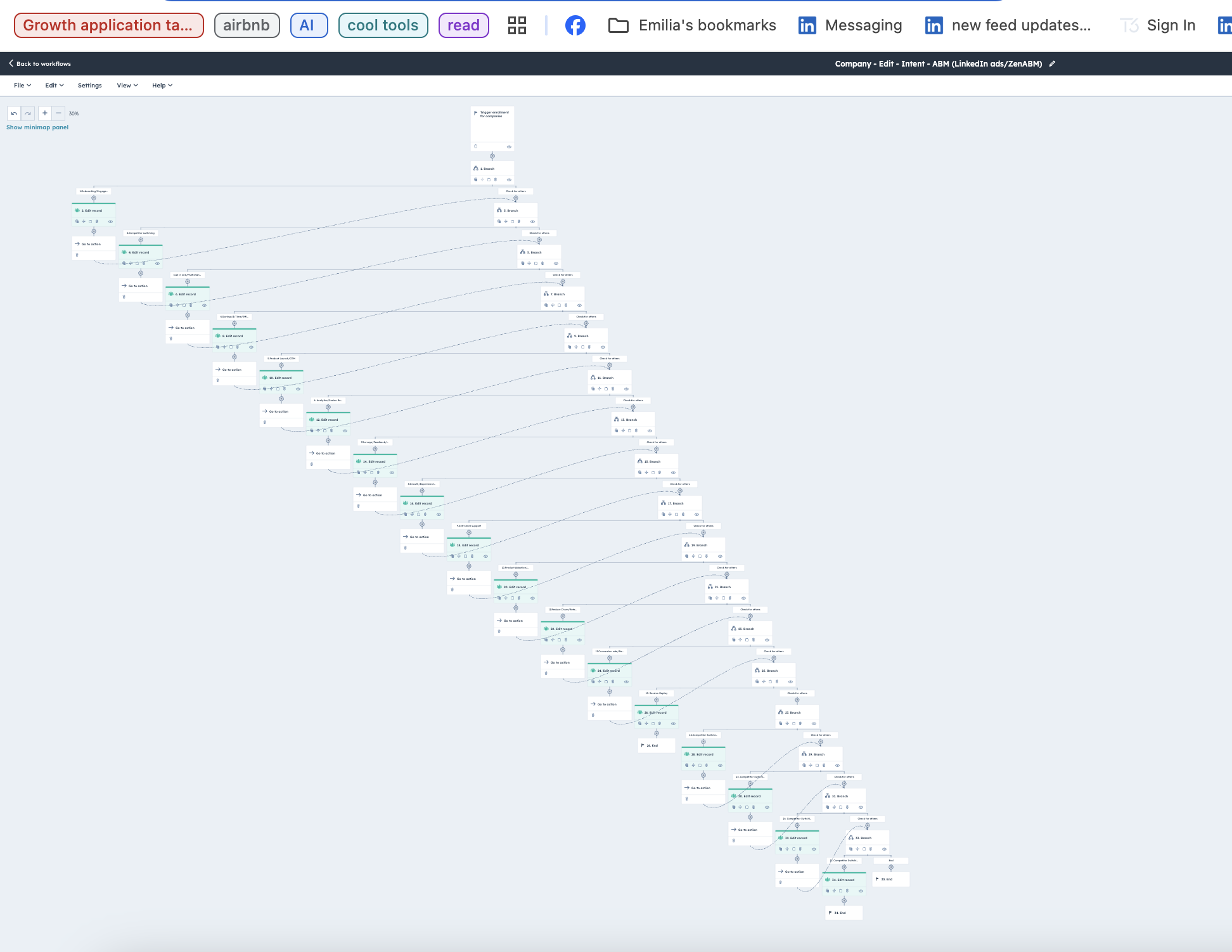
But at ZenABM you have this ready-made for you:
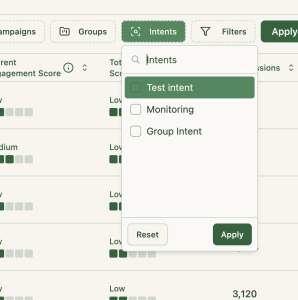
If you want to learn more about designing LinkedIn campaigns that reveal your prospects’ feature/use-case preferences, check out our guide on running ABM campaigns using LinkedIn ads.
ZenABM, using its two-way connection between LinkedIn ads and HubSpot, matches the deals in your CRM with the companies that engaged with your ad campaigns.
So, you can see the influence of your LinkedIn campaigns on your sales pipeline and measure the ROI of ad spend.
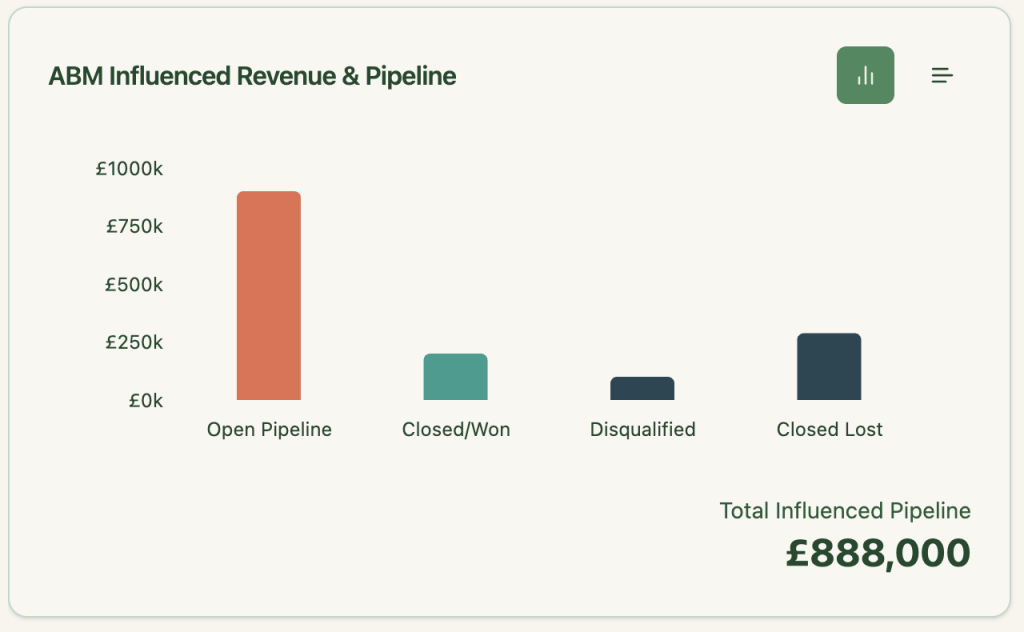
Not just the overall pipeline, you can also see the value of each deal as matched from your CRM:
ZenABM hosts comprehensive out-of-the-box account intent & ABM campaign effectiveness analytics dashboards:
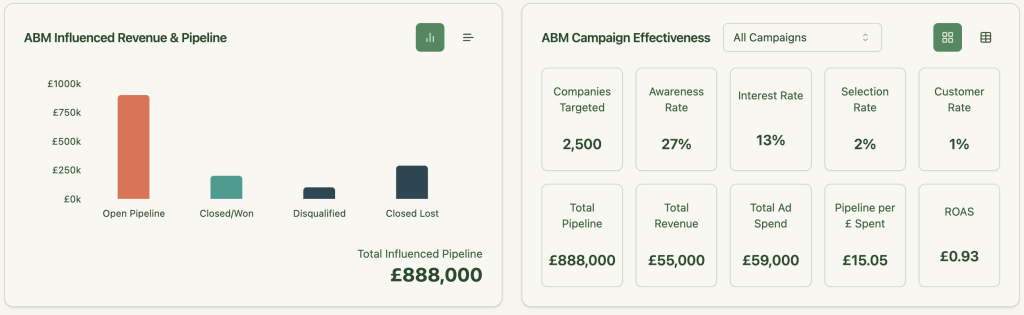
As ZenABM lets you see which companies interacted with which exact campaigns/campaign groups, you can retarget them using personalized ads.
Here’s an example of how you can go about it:
After you have seen the benefits, here’s how you can set up a LinkedIn ads HubSpot integration using ZenABM in a few minutes:
1. Sign up for ZenABM using a company e-mail and verify that company e-mail.
2. Now, click on “Continue setup” and click the “Connect LinkedIn” button: 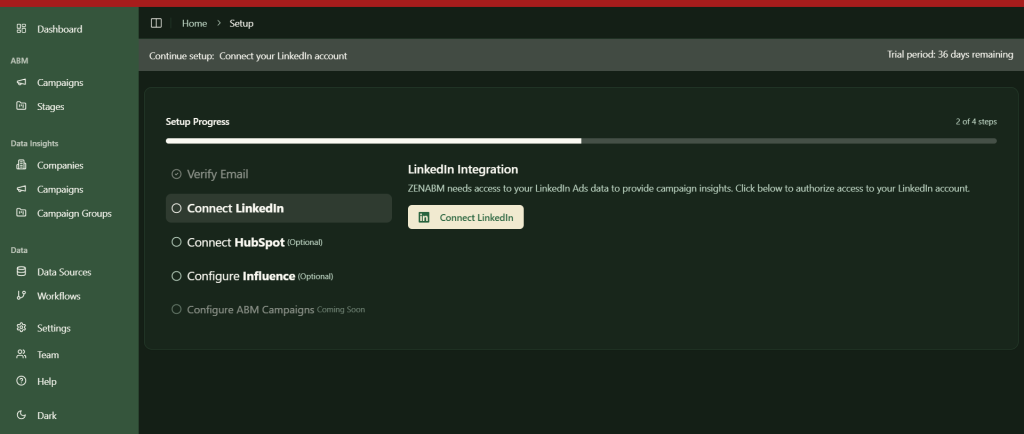
3. Sign in to your LinkedIn account and complete the verification:
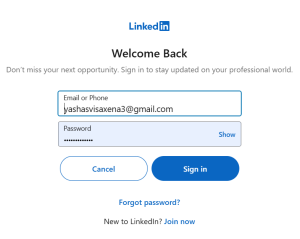
4. After this, you’ll be led back to ZenABM where you must choose the LinkedIn ad account you want to integrate: 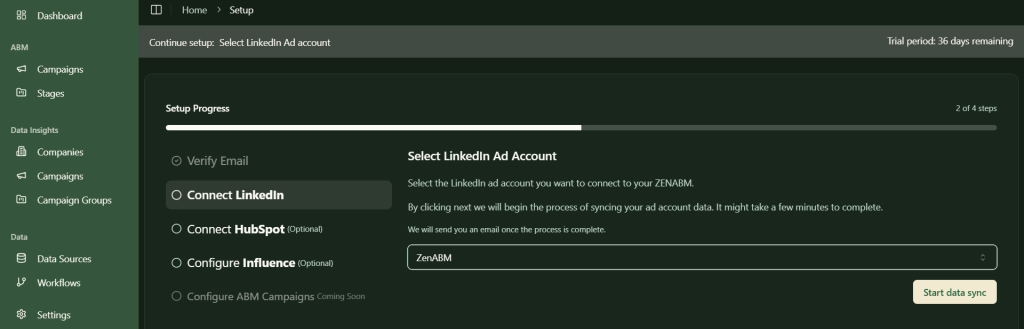
5. Similarly, click on the “Connect HubSpot” button, sign in to HubSpot, and choose the account:
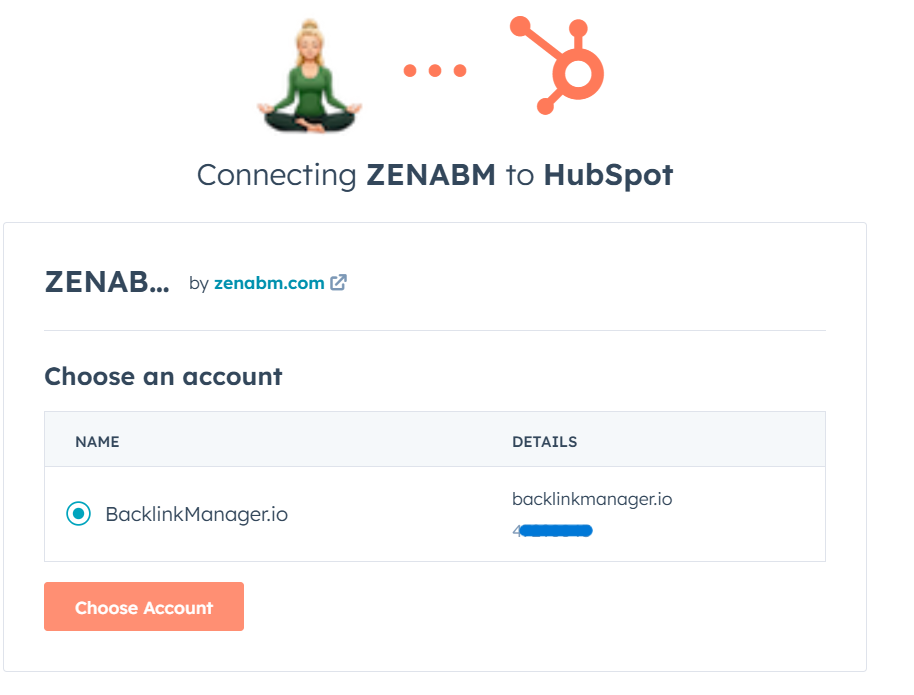
6. Now, your LinkedIn ads HubSpot integration is almost ready. Just choose the threshold number of impressions a company must have for the deal creation to be considered as influenced by your LinkedIn campaign. This step is necessary to ensure that companies with insufficient engagements are not pushed into your CRM.
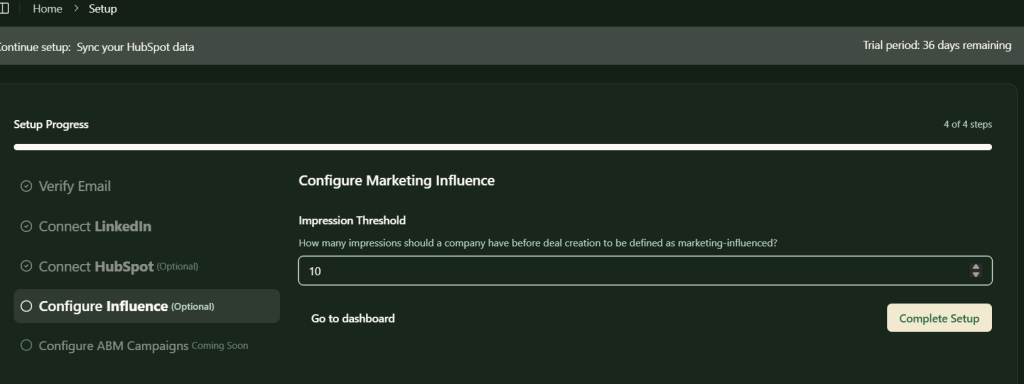
Following all these steps, your LinkedIn ads HubSpot integration is set up and you’ll be all set to push company-level ads engagement data for each specific campaign to your CRM.
HubSpot’s native LinkedIn ads integration leaves you guessing which companies engage with your campaigns. ZenABM fills that gap by providing company-level engagement data, pulling hyper-accurate first-party intent signals directly from LinkedIn’s API—eliminating the need for unreliable third-party methods.
It also automates lead scoring, assigns BDRs to the hottest accounts, and pushes this enriched data into HubSpot. Additionally, ZenABM matches your deals with engaged companies, directly linking your LinkedIn campaigns to pipeline and revenue via a plug-and-play ABM dashboard.
So, ready to transform your ABM strategy? Try ZenABM today and unlock the full potential of your LinkedIn Ads!
If you want to know more about the tool, book a demo now!
Yes, many CRMs integrate with LinkedIn, including HubSpot, Salesforce, Zoho, and Microsoft Dynamics. These integrations help you sync ad data, automate lead capture, and streamline sales outreach.
Absolutely. HubSpot offers native integration with LinkedIn Ads, allowing you to manage ad campaigns, track interactions, and capture leads directly into HubSpot’s CRM.
Advertising on LinkedIn through HubSpot allows you to directly sync lead data, measure ad effectiveness, and manage your ads from a unified platform, saving time and improving campaign tracking.
Yes, HubSpot’s Social tool lets you schedule and publish posts directly to LinkedIn, enabling centralized social media management alongside your ads.
When integrating LinkedIn Ads with HubSpot, leads from LinkedIn Lead Gen Forms automatically sync into HubSpot. No manual import is required.
Check your account status—accounts on hold won’t integrate. Resolve issues like missing billing info, payment failures, or expired cards. After resolution, reconnect your LinkedIn Ads account in HubSpot settings.
ZenABM enhances integration by providing precise company-level engagement data, automating lead scoring, assigning BDRs, and offering detailed ABM analytics that HubSpot’s native integration lacks.
Yes, ZenABM tracks company-level impressions (views) without clicks, using LinkedIn’s official API to provide accurate first-party intent signals for more targeted ABM campaigns.
Yes, ZenABM uses LinkedIn’s official API, ensuring compliance with LinkedIn guidelines and user privacy standards, unlike tools relying on third-party data or reverse IP lookups.
Yes, ZenABM automatically assigns engaged accounts to specific BDRs within HubSpot CRM, removing manual steps and enhancing sales efficiency.
Absolutely. ZenABM directly matches LinkedIn ad engagements to deals in HubSpot CRM, clearly showing how ads influence your sales pipeline and revenue.


